How to Print NOUN Course and Exam Registration Slips
Need your NOUN course or exam slip? This guide shows where to print it, when it matters, and what to do if the record looks wrong.
 NOUNCOMPASS
How to Print NOUN Course and Exam Registration Slips
Need your NOUN course or exam slip? This guide shows where to print it, when it matters, and what to do if the record looks wrong.



Need your NOUN course or exam slip? This guide shows where to print it, when it matters, and what to do if the record looks wrong. Portal labels can move, so match these steps with the screen in front of you.
Where to open the current registration slip
To print your NOUN registration slip:
- Log into NOUN portal
- Open the current course- or exam-registration record
- Use the print, download, or save option the page provides
- Check the session, course codes, and registration status on the saved copy
- Keep it privately and follow the current exam instructions on whether a printed copy is required
Which Slip You Need And What To Check
This guide explains where registration slips fit in the student workflow, what details to verify, and how to preserve a safe copy.
What Are Registration Slips?
Course Registration Slip:
- Proof you're registered for courses
- Shows course codes, titles, credits
- Useful when you need to compare a later course or result record
Exam Registration Slip:
- Proof you're registered to sit exam
- May show exam details provided for the current session
- Bring it only in the form required by the current exam instructions
Step-by-Step: Printing Registration Slip
Step 1: Log In to Portal
- Go to the official NOUN student portal
- Log in with Student ID and password
Step 2: Find Course Registration Section
- Open the course-registration area shown on your dashboard
- Look for the submitted registration record or slip option
- Compare the visible list with the courses you intended to register
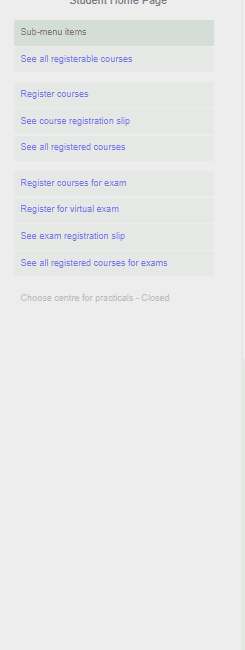
Step 3: Save The Registration Slip
- Use the print, download, or save option shown by the current page
- Open the saved record
- Confirm the student details, session, and course or exam entries
- Give the file a private name that helps you identify the semester
Step 4: Print the Slip
Option A: Print from browser
- Open the PDF
- Press Ctrl+P (or Cmd+P on Mac)
- Select printer
- Click "Print"
Option B: Save to computer first
- Open PDF
- File → Save As
- Choose location on computer
- Later: Find file → Right-click → Print
When You Need Registration Slip
Course Registration Slip
- Comparing course registration with exam registration or results
- Reporting a missing or incorrect course
- Keeping a semester record of what the portal accepted
Exam Registration Slip
- Follow the current examination notice on whether to bring a printout, photocopy, or another record
- Check that the course, venue, mode, and session details match your instructions
Troubleshooting
Issue: "Print button not showing"
Try:
- Refresh page (F5)
- Clear browser cache
- Try different browser
- Contact support
Issue: "Can't open PDF file"
Solution:
- Download Adobe Reader (free)
- Open PDF with Adobe Reader
- Then print
Issue: "The slip should exist but I cannot find it"
Return to the current official workflow and compare the registration state first. If the underlying course or exam record is incomplete, the printing problem may actually be a registration-state problem rather than a PDF problem. Use How To Register NOUN Courses or NOUN Exam Registration Guide to confirm the earlier step.
Quick answers
Open any question for the answer.
01Is this an official NOUN guide?
NOUN Compass is independent. Confirm final requirements, dates, fees, and portal instructions through current official NOUN channels.
02What if the official portal shows something different?
Follow the current official portal information and contact your study centre or official support when clarification is needed.
03How often is this guide reviewed?
The displayed last-checked date shows the most recent editorial review, but official processes may change afterward.
04Q1: Do I need original slip or photocopy?
Follow the current instructions for your examination centre. This article does not verify one document format for every centre.
05Q2: What if I lose my slip before exam?
Return to the current registration record and use the available save or print option. If the record is no longer available, ask the official support route how to retrieve it.
06Q3: Do I need slip for every course?
Check the course list on the slip you generated. Do not assume it includes an entry that is missing from the page.