How to Update Student Profile Details on NOUN Portal
Learn how to update your NOUN student profile information. Update address, phone, email, and other personal details on the portal.
 NOUNCOMPASS
How to Update Student Profile Details on NOUN Portal
Learn how to update your NOUN student profile information. Update address, phone, email, and other personal details on the portal.


Learn how to update your NOUN student profile information. Update address, phone, email, and other personal details on the portal. Portal labels can move, so match these steps with the screen in front of you.
Check which fields the portal lets you edit
To update your NOUN profile:
- Log into portal
- Go to "My Profile" (top right)
- Click "Edit Profile"
- Update information (address, phone, email, etc.)
- Click "Save Changes"
- Portal saves changes immediately
The portal decides which fields can be edited and when a change becomes active. Save the confirmation shown after submission and verify the updated value on the refreshed profile.
Which Details To Review Before Editing
This guide explains what profile details students should verify, which changes require care, and when to contact official support instead of guessing.
What You Can Update
The profile may show contact, address, personal, study-centre, and programme details. Some may be editable while others may be locked. Treat the controls visible on your account as the current boundary.
Step-by-Step Profile Update
Step 1: Log In
- Go to the official NOUN student portal
- Log in with Student ID and password
Step 2: Access Profile
- Open the profile or account area shown on your dashboard
- Select the current profile-details option
- Review the existing values before editing
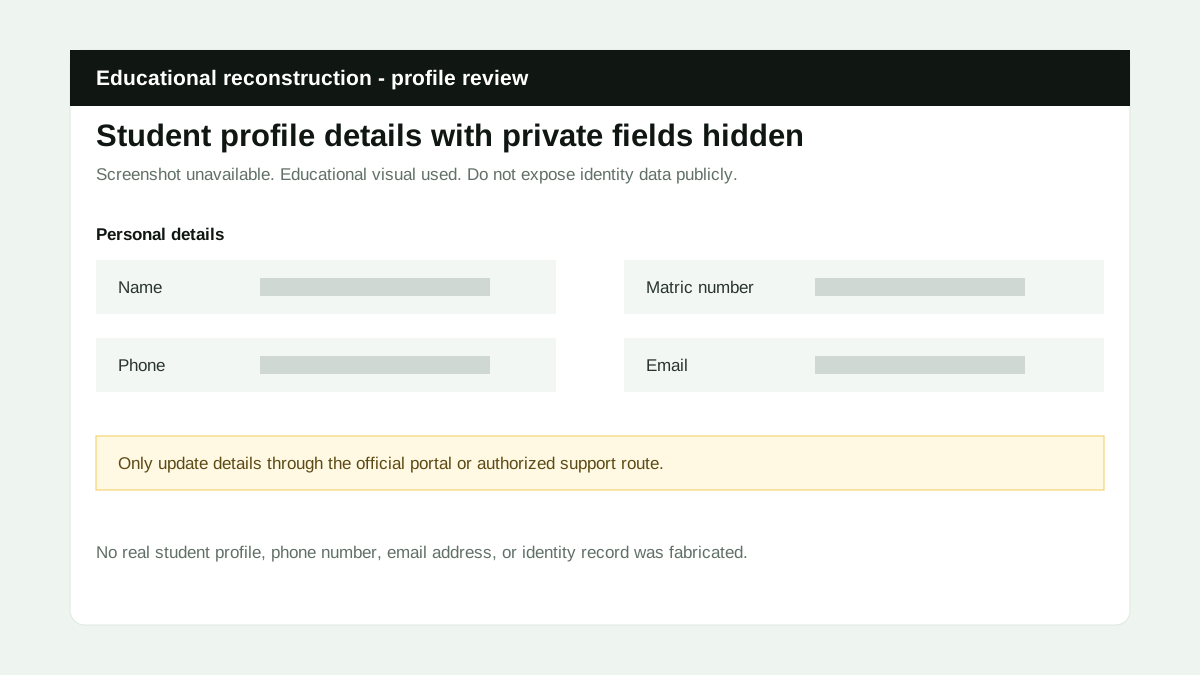
Step 3: Click Edit Profile
- Use the edit control provided on the current profile page
- Note which fields the portal allows you to change
- Leave locked academic or identity fields untouched and request official guidance when they are wrong
Step 4: Update Information
Edit fields as needed:
Phone Number:
- Clear old number
- Enter new number with country code (+234 for Nigeria)
- Format: +234 XXX XXX XXXX
Email Address:
- Clear old email
- Enter new email
- Use an address you control and follow any verification instruction the portal displays
Address:
- Update street address
- Update city/state
- Update postal code
Emergency Contact:
- Name
- Phone number
- Relationship
Step 5: Save Changes
- Review all changes
- Click "Save Changes" or "Update Profile"
- Save the confirmation or error message
- Refresh the profile and confirm what actually changed
Troubleshooting
Issue: "Can't change email address"
Read the message shown after saving. If the portal asks for verification, follow that route. If the field is locked or the change does not appear, preserve the screen and contact official support.
Issue: "Edit button not showing"
Try:
- Refresh page
- Clear cache
- Try different browser
- Contact support
Issue: "Can't change program/student ID"
Do not try to work around a locked programme or student-ID field. Save the incorrect value and ask the current official academic or account-support route how it should be corrected.
Important Notes
- Update your address when it changes.
- Keep your phone number current so your study centre can reach you if needed.
- Use an email address you actually check.
- Review your emergency contact details from time to time.
Quick answers
Open any question for the answer.
01Is this an official NOUN guide?
NOUN Compass is independent. Confirm final requirements, dates, fees, and portal instructions through current official NOUN channels.
02What if the official portal shows something different?
Follow the current official portal information and contact your study centre or official support when clarification is needed.
03How often is this guide reviewed?
The displayed last-checked date shows the most recent editorial review, but official processes may change afterward.
04Q1: Can I change my name on profile?
Use only the official identity-correction process shown by NOUN. This page does not verify that a name field can be changed from the profile screen.
05Q2: Do I need to update profile every semester?
No, only if information changed.
06Q3: Can I have multiple email addresses on my account?
Use the email field and account guidance shown by the current portal; this page does not verify support for multiple addresses.
07Q4: What if I moved to new address?
Update the address if the field is editable, then confirm the saved value. If it is locked, request official account support.