How to Fix Missing NOUN E-Wallet Balance: Complete Troubleshooting
If money is missing from your NOUN e-wallet, start here. This guide covers the usual causes, what to verify, and when it is time to contact support.
 NOUNCOMPASS
How to Fix Missing NOUN E-Wallet Balance: Complete Troubleshooting
If money is missing from your NOUN e-wallet, start here. This guide covers the usual causes, what to verify, and when it is time to contact support.


If money is missing from your NOUN e-wallet, start here. This guide covers the usual causes, what to verify, and when it is time to contact support. Use the amount shown for your own student record before making a payment.
What to check first
If your NOUN e-wallet balance is missing, do not pay again until you have checked the transaction status, the RRR or payment reference, your bank record, and the wallet history shown in your own portal.
First step: Save the screen you can see now, refresh the portal once, and compare it with your payment receipt. If the records still disagree, prepare the reference, amount, date, and safe screenshots for official support.
What To Check Before You Pay Again
This page helps you separate a delayed or unclear payment from a wallet-entry mismatch. It covers:
- The records to compare
- A practical verification order
- How to check payment status on the NOUN portal
- When to request a refund
- Common mistakes that make the problem worse
- Practical troubleshooting steps that should be verified through official records
Why Students Search For This
NOUN e-wallet issues rank among the top 10 student payment problems. Students commonly report wallet and portal issues during busy registration periods, so evidence matters.
Common scenarios:
- You load funds but the portal shows a zero balance
- Your balance was visible yesterday but disappeared today
- You made a payment but it's not reflecting in your account
- Multiple failed transactions charged you multiple times
This guide walks through each scenario with verified solutions.
Step-by-Step Guide: How to Fix Your Missing E-Wallet Balance
Step 1: Clear Your Browser Cache (Takes 2 minutes)
Your browser might be displaying cached information from before your payment.
For Chrome:
- Press
Ctrl + Shift + Deleteto open Clear Browsing Data - Select "All time" under Time range
- Check boxes for Cookies and Cached images and files
- Click "Clear data"
- Log out of NOUN portal and log back in
For Firefox:
- Press
Ctrl + Shift + Deleteto open Clear Recent History - Select "Everything" under Time range
- Make sure "Cookies" and "Cache" are checked
- Click "Clear Now"
- Log out of NOUN portal and log back in
For Safari:
- Click Safari → Preferences → Privacy
- Click "Manage Website Data"
- Search for "nouonline"
- Select it and click "Remove"
- Log out and log back in
Important: After clearing cache, wait 5-10 minutes before checking your balance again.
Step 2: Check Payment Status on NOUN Portal
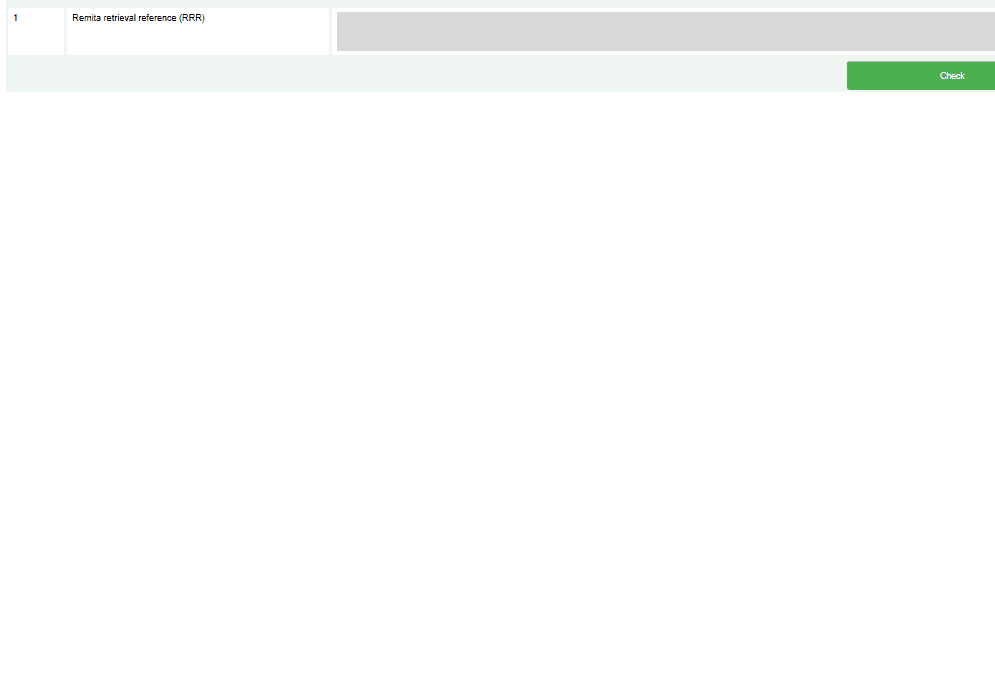
- Log in to the NOUN portal (the official NOUN student portal)
- Click "My Profile" in the top-right corner
- Select "Payments" or "Wallet Management"
- Look for "Check Payment Status" or "Transaction History"
- Search for your payment using the date range
What to look for:
- Transaction ID, RRR, or other payment reference shown on your receipt
- Status: "Successful," "Pending," or "Failed"
- Amount and timestamp
- Payment channel shown on the record
If the status shows "Pending": Do not create another payment. Keep the reference and use the current guidance shown by the payment provider or official support route.
If the status shows "Failed": Compare the portal status with your bank record before deciding what happened. Proceed to Step 4.
If no transaction appears: Check the bank record and the reference you used. A missing portal entry does not by itself prove whether the bank completed, reversed, or never submitted the payment.
Step 3: Verify Wallet Balance Using the Manage Wallet Page
- Log into your NOUN portal
- Navigate to "Manage Wallet" (typically under Student Dashboard or Payments)
- Your current balance should display prominently
- Check the "Wallet History" tab to see all recent transactions
- Look for your most recent payment in the list
If your payment appears in history but not in balance: This suggests the funds were applied to a specific course or fee. Check your course registration fees.
If your payment doesn't appear anywhere: Your payment may not have been credited yet. Wait until the next business day, then contact support.
Step 4: Verify RRR and Payment Reference
To find your RRR:
- Check your bank statement or SMS confirmation
- Look for text like: "RRR: 123456789012"
- Copy this number exactly (do not alter it)
To verify the RRR on NOUN portal:
- Go to "Verify RRR" or "Payment Verification" page
- Enter your RRR
- Enter the exact amount you paid
- Click "Verify"
The portal should confirm whether:
- ✓ RRR is valid and funds are allocated
- ✓ RRR matches the amount you entered
- ✗ RRR is invalid or doesn't exist
- ✗ RRR amount doesn't match
If verification fails, contact NOUN IT support immediately with your bank reference.
Step 5: Contact Support with Documentation
If your balance is still missing after following steps 1-4, you'll need to contact NOUN support officially.
What to prepare:
- Your Transaction ID or RRR
- Screenshot of your bank confirmation
- Screenshot of the "Check Payment Status" page showing "Failed" or "Pending"
- Exact amount paid
- Date of payment
- Your student ID
Contact channels:
- NOUN IT Portal Support: Log in → Help Center → Submit Ticket
- Email: Check official NOUN contact page
- Phone: Call NOUN main line (verify current number on official website)
- Student Centre: Visit your nearest NOUN study centre in person
Mistakes That Make A Payment Harder To Trace
Treating a delay as proof of failure
A balance that has not changed does not tell you whether the payment is pending, failed, reversed, or attached to another charge. Read the actual status and compare it with your receipt before taking another action.
Repeating the same browser session
Refresh once or sign in again through the official portal. A second device or browser can help rule out a display problem, but it cannot confirm the payment outcome on its own.
Creating another payment before checking the first
A second attempt can create a duplicate charge or a second reference. Confirm the first transaction through the portal, provider, or official support before retrying.
Losing the transaction reference
The RRR or transaction reference helps the bank, payment provider, or official support team trace the payment. Save it with the amount, date, receipt, and portal status.
Guessing where the money went
Use the wallet or transaction history available on your account and compare each entry with the receipt. If the records do not explain the difference, report the mismatch instead of assigning a cause yourself.
Troubleshooting
| What you see | What to compare | Next step |
|---|---|---|
| "Balance shows zero after payment" | Receipt, payment status, and wallet history | Save the evidence and avoid paying again until the first payment is traced |
| "Payment shows Failed in portal" | Portal status and bank record | Confirm whether money left or returned before starting another payment |
| "RRR verification says 'Invalid'" | Every digit of the RRR and the receipt | Re-enter the exact reference, then contact the payment provider or official support if it still fails |
| "My bank charged me but portal shows no transaction" | Bank debit, RRR, amount, and portal history | Report the mismatch with both sets of evidence |
| "Can't access portal to check balance" | Login route and account details | Reset your password or use official account support |
| "Balance is still unclear after checking" | Wallet history and any course or fee entries | Prepare one support report that states what each record shows |
Important Warnings
⚠️ Do NOT:
- Pay again while the first payment is still unresolved.
- Share your RRR or Transaction ID publicly (only with official NOUN support).
- Contact unofficial support channels or websites claiming to "fix" your balance.
- Assume the cause from one screen alone.
✓ DO:
- Keep screenshots of every payment confirmation
- Follow the current status guidance shown by the provider or official support
- Contact only official NOUN support channels
- Verify this information through the official NOUN portal before making payment or submitting applications.
Quick answers
Open any question for the answer.
01Is this an official NOUN guide?
NOUN Compass is independent. Confirm final requirements, dates, fees, and portal instructions through current official NOUN channels.
02What if the official portal shows something different?
Follow the current official portal information and contact your study centre or official support when clarification is needed.
03How often is this guide reviewed?
The displayed last-checked date shows the most recent editorial review, but official processes may change afterward.
04Q1: How long does a NOUN e-wallet balance take to update?
**A:** This page does not verify one processing time for every bank, payment channel, or semester. Use the status attached to your transaction and the current guidance from the payment provider or official NOUN support.
05Q2: Why does my balance show zero even though I just paid?
**A:** Likely reasons:
06Q3: I paid one amount but my wallet shows a lower balance. Where did the difference go?
**A:** Common explanations:
07Q4: My bank says they charged me twice, but NOUN only shows one payment. What do I do?
**A:** Contact NOUN support immediately with:
08Q5: Can NOUN refund my payment if I paid by mistake?
**A:** A refund may be possible, but this page does not verify a universal timeline or outcome. Submit the current official request route with your Transaction ID or RRR, save the acknowledgement, and avoid assuming how quickly the money will return.
09Q6: Is my e-wallet money safe? Can it be stolen?
**A:** Yes, your wallet is safe. NOUN uses:
10Q7: What if NOUN's system shows my balance but my bank didn't charge me?
**A:** This shouldn't happen with official payments. If it does:
11Q8: Can I check my e-wallet balance without logging into the portal?
**A:** No. Your balance is personal account information only accessible: