How to Use the NOUN Remita Payment Portal and Generate an RRR
Use the official NOUN student portal to generate the correct Remita RRR, complete payment once, and check the payment status before creating another reference.
 NOUNCOMPASS
How to Use the NOUN Remita Payment Portal and Generate an RRR
Use the official NOUN student portal to generate the correct Remita RRR, complete payment once, and check the payment status before creating another reference.

Use the official NOUN student portal to generate the correct Remita RRR, complete payment once, and check the payment status before creating another reference. Use the amount shown for your own student record before making a payment.
NOUN Remita Payment Portal: Where to Generate Your RRR
Start from the official NOUN student portal rather than a random Remita link. NOUN's returning-student procedure directs students to Manage Wallet, choose Load Wallet, enter the amount, click Pay, and copy the generated RRR for payment.
- Open the official NOUN student portal and sign in.
- Go to Manage Wallet, choose Load Wallet, enter the correct amount, and click Pay.
- Copy the RRR generated for that payment and keep it with your receipt.
- After payment, return to Manage Wallet and use Check Payment Status before generating another reference.
Verify the current rule on the NOUN returning-student registration and payment procedure. Then follow the full NOUN school-fee and e-wallet workflow.
Generate The RRR From Your Own Portal Charge
To generate Remita for a NOUN payment:
- Log into the official student portal.
- Open
Payments. - Choose the fee you want to pay.
- Generate the payment reference.
- Save the RRR immediately.
- Complete the payment through the approved Remita route.
- Return later to confirm that the portal has updated.
Generating an RRR is only useful when it belongs to the right charge and amount. Check those details before paying, keep the reference, and trace the first payment before creating another one.
What To Check Before Generating An RRR
This guide covers:
- where to open the payment section
- how to generate the correct RRR
- how to complete the payment safely
- what to save for your records
- what to do if the portal does not update right away
Why This Matters
Most students only need to get three things right here: generate the correct reference, pay it once, and keep the right evidence. Problems usually start when someone uses an old RRR, guesses the amount, or repeats the payment before checking the first one properly.
Step-by-Step Guide: Generating Remita for NOUN
Step 1: Log into your NOUN portal account
- Open the official NOUN student portal.
- Enter your student ID and password.
- Finish any extra verification the portal asks for.
If you cannot log in, use the password reset guide before you try to generate a payment reference.
Step 2: Open the payment section
Once you are inside the portal:
- Look for
Payments,Pay Fees, or the bursary area. - Choose the payment type you want to handle.
- Check the page carefully before moving on.
Step 3: Confirm what you are paying for
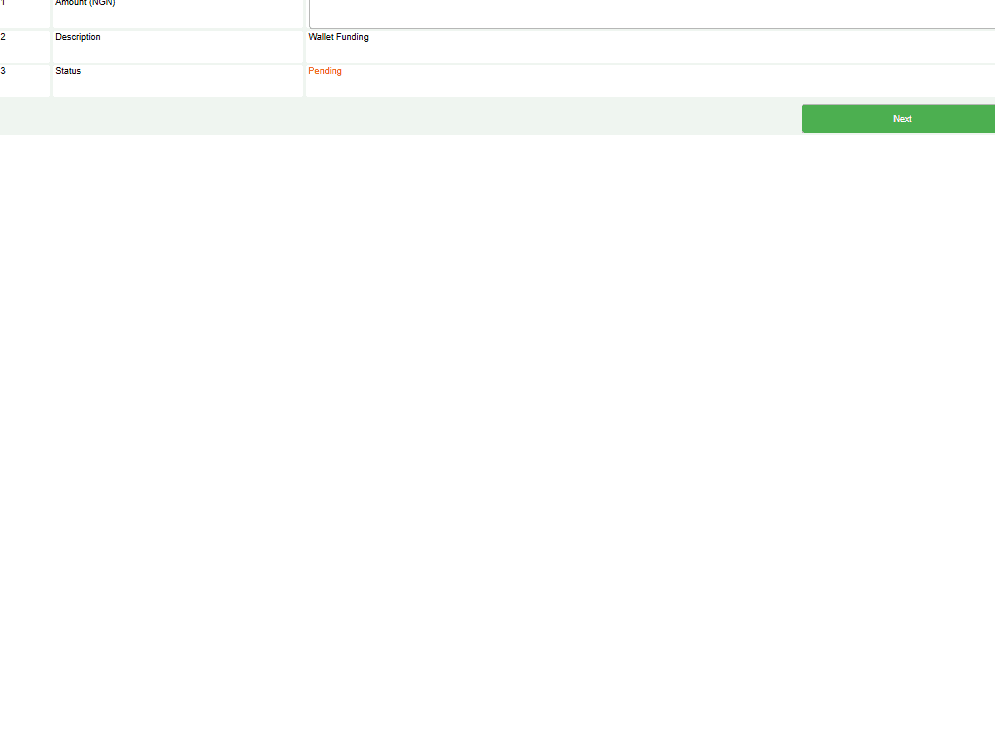
Make sure the charge in front of you matches the task you actually want to complete. A school-fee payment, an exam-related payment, and another portal charge should not be treated as the same thing.
Step 4: Check the amount before you generate the RRR
- Review the amount shown on the page.
- Compare it with your current portal record.
- If it looks wrong, stop and recheck before you continue.
Step 5: Generate your Remita Reference Number
Once the details are correct:
- Click the button that generates the payment reference.
- Save the RRR immediately.
- Save the amount and the payment purpose with it.
Keep in mind that an RRR is tied to that specific payment attempt. If you need to pay for something else later, you may need a different reference.
Step 6: Pay through the approved Remita route
You can usually continue from the portal into Remita or pay through a bank route that accepts the RRR.
If you pay online:
- Continue to the Remita payment page.
- Confirm the RRR and amount again.
- Complete the payment once.
- Save the final confirmation.
If you pay through a bank route:
- Use the exact RRR you generated.
- Enter the correct amount.
- Keep the bank receipt, SMS, or transaction evidence.
Step 7: Verify the payment later
- Give the system time to update.
- Return to the NOUN portal.
- Open the payment-history or status area.
- Confirm that the right transaction is showing the right status.
Sometimes the portal updates quickly. Sometimes it takes longer. That delay alone is not proof that the payment failed.
Complete Remita Payment Workflow
| Step | Action | Typical outcome |
|---|---|---|
| 1 | Log into portal | Portal access confirmed |
| 2 | Open payment area | Correct payment page visible |
| 3 | Generate RRR | Reference created |
| 4 | Save the RRR | Evidence preserved |
| 5 | Pay through Remita | Payment submitted |
| 6 | Recheck portal later | Status confirmed |
Troubleshooting Remita Payment Issues
RRR generation failed
Clear the page, log out, and try again after a short pause. If the same issue keeps repeating, compare the payment type and account state before you assume the portal is simply down.
Payment failed at bank level
That usually points to the bank side rather than the portal side. Check your balance, the payment details, and the status from your bank before you generate another reference.
Remita says the RRR is invalid
Recheck the number carefully. If the reference is old or no longer usable, generate a fresh one from the portal instead of forcing the old one again.
The bank confirmed payment but the portal has not updated
Do not pay again immediately. Save the transaction evidence, wait, then check the status again through the official portal before you escalate.
Common Mistakes
Using an old RRR
Students sometimes return to a saved reference and assume it is still fine. If the reference is no longer valid, generate a new one from the current portal page.
Paying the wrong amount
One careless figure can turn a simple payment into a support issue. Always compare the amount on the portal with what you are about to submit.
Failing to keep proof
If the portal does not update, your bank confirmation and payment record become important. Save them while they are easy to find.
Paying twice too quickly
This is one of the easiest ways to create confusion. If the first payment is still being processed, a second payment can make the situation worse instead of better.
Important Warnings
Do not:
- pay through an unofficial helper or random payment link
- reuse a doubtful or outdated RRR without checking it
- guess the amount when the portal is showing something else
- repeat the payment before you confirm what happened to the first one
Do:
- generate the RRR from the official NOUN portal
- save the RRR and payment evidence immediately
- wait and recheck the portal before you panic
- prepare one clear support report if the issue remains unresolved
Quick answers
Open any question for the answer.
01Is this an official NOUN guide?
NOUN Compass is independent. Confirm final requirements, dates, fees, and portal instructions through current official NOUN channels.
02What if the official portal shows something different?
Follow the current official portal information and contact your study centre or official support when clarification is needed.
03How often is this guide reviewed?
The displayed last-checked date shows the most recent editorial review, but official processes may change afterward.
04Is Remita safe for NOUN payments?
It is the normal payment route students expect to see in this workflow. What matters most is that you start from the official NOUN portal and confirm each step before you submit the payment.
05What if I generated more than one RRR?
Check which one you actually used. Do not assume every generated reference should be paid.
06What if I paid but the portal has not updated?
Save the transaction evidence, give the system time, and recheck the official portal before you decide the payment failed.
07Can I get a refund if I paid too much?
This page does not verify a universal refund timetable or outcome. If you overpaid, preserve the reference, receipt, and current portal status, then confirm the current official process before assuming how quickly it will be resolved.