How To Check Outstanding Courses On NOUN Result Statement
Learn how the verified NOUN result statement page displays outstanding courses, where to find that section, and how to use it without assuming an unverified carryover workflow.
 NOUNCOMPASS
How To Check Outstanding Courses On NOUN Result Statement
Learn how the verified NOUN result statement page displays outstanding courses, where to find that section, and how to use it without assuming an unverified carryover workflow.



Learn how the verified NOUN result statement page displays outstanding courses, where to find that section, and how to use it without assuming an unverified carryover workflow. Treat your official result statement as the final academic record.
Where Are Outstanding Courses Listed?
In the verified NOUN workflow, outstanding courses were visible on the ERP statement-of-result page reached through the Support portal's Result statement action. They appeared in a dedicated Outstanding Courses section, not on the first My progress page.
Why This Matters
Students often ask about carryover or unfinished courses, but the research boundary here is important. This phase did not verify an explicit carryover workflow or a dedicated carryover label. What it did verify is that the ERP result statement already contained an Outstanding Courses section.
That means this article stays factual:
- it shows where the section was found
- it explains how to use it
- it avoids unsupported claims about processes we did not observe
Route Recorded In The Earlier Editorial Pass
Use this path:
- log into the NOUN student portal
- open
My progress - use the Support route the page recommends
- log into
support.nou.edu.ng - click
Result statement - scroll through the ERP page until you reach
Outstanding Courses
This route matters because the first result screen did not expose the same level of unfinished-requirement detail.
What The Outstanding Courses Section Looked Like
The live session confirmed a dedicated Outstanding Courses area on the ERP result statement page. The section presented course information in a structured list rather than a vague summary note.
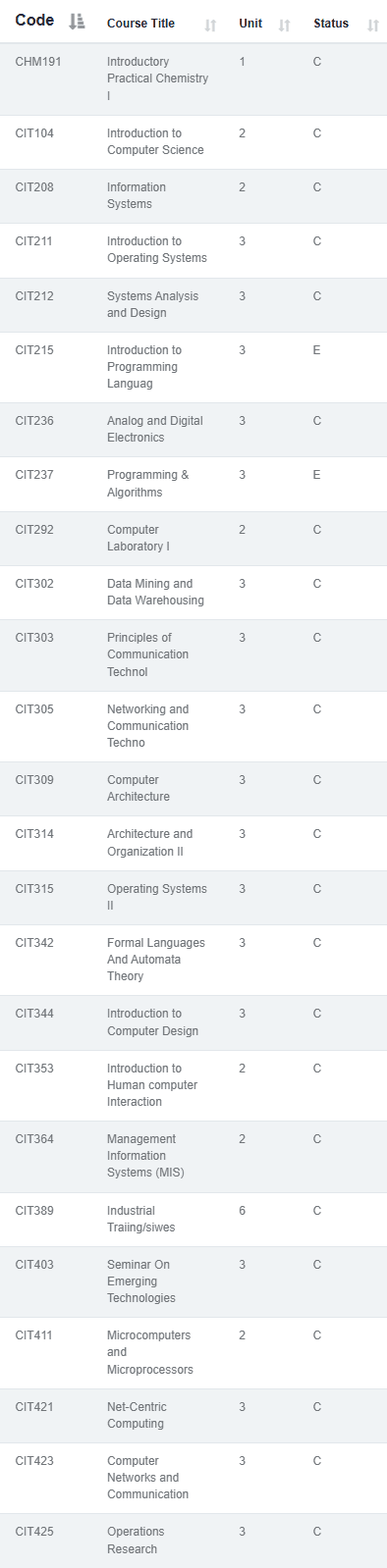
The workflow importance is clear: if you are trying to understand unfinished academic requirements, you should not stop at My progress when the deeper statement page already exposes a dedicated section.
How To Use The Section Safely
Step 1: Reach the ERP result statement page
Do not look for this section on the first portal screen. The earlier editorial pass recorded it only on the deeper statement page.
Step 2: Scroll until you find the section
The ERP page contained multiple academic blocks, including grades, summary statistics, performance standing, and outstanding courses. Move through the page carefully rather than assuming the first visible panel is the only important one.
Step 3: Read the course entries literally
Record what the system itself shows. Do not add labels like carryover unless the page itself uses them.
Step 4: Compare with your registration and planning workflow
Once the outstanding-course list is visible, compare it with your current academic planning:
That helps you move from observation to practical next steps without fabricating an academic rule.
What This Section Does And Does Not Confirm
It does confirm
- the system can display an
Outstanding Coursessection - that section lives on the ERP result-statement page
- students can use it as part of academic review
It does not confirm
- a full carryover registration workflow
- how every outstanding course should be treated in future semesters
- transcript or result-correction processes
Those remain separate research tasks.
Common Mistakes To Avoid
- searching only
My progressfor unfinished requirements - calling every outstanding-course entry a verified carryover workflow
- planning future registration without comparing the official result page
- treating memory or forwarded screenshots as stronger than the live system
Troubleshooting
I cannot find outstanding courses on My progress
That matches the historical observation. The earlier editorial pass recorded the dedicated section on the ERP result statement page, not on the first portal screen.
I found the statement page, but I only checked the top section
Scroll further. The observed ERP page had multiple stacked academic sections.
I need to connect outstanding courses with registration decisions
Use the official result statement as your current evidence, then compare it with How To Register NOUN Courses and Why NOUN Course Registration Slip Says Register For The Current Semester First.
Verification Notes
This article is based on the live workflow recorded in an earlier editorial pass dated 19 June 2026. An Outstanding Courses section was directly observed on the ERP statement-of-result page reached from the Support portal. No explicit carryover workflow was verified in the same session, so this article avoids presenting one as fact. A current source recheck is pending.
Quick answers
Open any question for the answer.
01Is this an official NOUN guide?
NOUN Compass is independent. Confirm final requirements, dates, fees, and portal instructions through current official NOUN channels.
02What if the official portal shows something different?
Follow the current official portal information and contact your study centre or official support when clarification is needed.
03How often is this guide reviewed?
The displayed last-checked date shows the most recent editorial review, but official processes may change afterward.
04Where were outstanding courses visible?
On the ERP statement-of-result page opened through the Support portal.
05Were outstanding courses visible on My progress?
They were not verified there in this session.
06Does this article explain carryover registration?
No. Carryover workflow was not directly verified in this phase.
07Should I use this section when planning registration?
Yes, as an official academic-reference point, but pair it with the current registration workflow before acting.