How To Check NOUN Results Using My Progress, The Support Portal, And The Statement Of Result Page
This guide shows where to check your NOUN results, CGPA, outstanding credits, and statement-of-result pages without bouncing between the wrong screens.
 NOUNCOMPASS
How To Check NOUN Results Using My Progress, The Support Portal, And The Statement Of Result Page
This guide shows where to check your NOUN results, CGPA, outstanding credits, and statement-of-result pages without bouncing between the wrong screens.


This guide shows where to check your NOUN results, CGPA, outstanding credits, and statement-of-result pages without bouncing between the wrong screens. Treat your official result statement as the final academic record.
Where Should You Check NOUN Results?
The verified NOUN results workflow did not stop at one page. In the observed session, students started inside the main student portal, opened My progress, reviewed the visible history rows, then followed the on-page instruction to use Support and eTicketing for more result detail. After logging into the Support portal, the strongest academic record surface was Result statement, which opened the ERP page at erp.nou.edu.ng/stsor.
Use this order:
- Log into the student portal.
- Open
My progress. - Review the visible result/history rows.
- Follow the note that points you to
SupportandeTicketing. - Log into the Support portal.
- Open
Result statement. - Review the ERP statement page for grades, CGPA, class of degree, outstanding credit, and outstanding courses.
Which Result Pages This Article Checks
This guide follows the results workflow we observed on 19 June 2026. It is based on what was visible in the portal and support tools during the live research session, not on forum guesses or generic university portal advice.
You will learn:
- where NOUN results were visible in the student portal
- why
My progressmatters even though it is not labeledResults - how the Support portal becomes part of the real results workflow
- where the full statement-of-result page appears
- which academic metrics were verified there
- what to do when a grade is not showing or when the registration-slip page blocks you
- which next guides to use for TMA, exams, registration, and support
What Was Actually Verified
The live session confirmed these surfaces:
- the student-portal menu label
My progress - inline academic periods such as
2024_1and2024_2 - result table columns including
Course Code,Course Title,Credit unit,Category,Grade, andRepeat - summary rows including
Total credit unit passedandCummulative credit unit passed - an on-page instruction that said
Click on Support (top right), eTicketing (Left) and login to see more results - the Support portal login route
- the Support dashboard action
Result statement - the ERP result page at
https://erp.nou.edu.ng/stsor - the ERP grade table, summary statistics, performance standing, outstanding credit, and outstanding courses
Export as PDFandPrint
What was not verified:
- transcript workflow
- dedicated carryover workflow
- result-correction workflow
Those areas stay out of scope in this guide.
Step 1: Start In The Student Portal And Open My Progress
The first important lesson from the research session is simple: the results entry point was not called Results. The visible label was My progress.
That matters because many students naturally search for a clear result menu and miss the correct entry point while still being inside the right portal.
When My progress opened, the page loaded academic history directly inside the student portal. It did not look like a separate public checker. It showed:
- academic period labels such as
2024_1and2024_2 - rows for course records
- a visible
Gradecolumn - cumulative credit summaries
The page also showed an important limitation: the visible grade cells on this account were dashes. So the portal proved that a grade field exists, but it did not fully resolve the grade problem on its own.
That is why this guide does not stop at My progress.
Step 2: Read My Progress For The First Layer Of Evidence
My progress is still useful even when it does not show everything. It gave us three valuable checks:
- historical academic periods were visible without a semester selector
- result rows were already tied to the student's academic history
- cumulative passed-credit summaries were visible on the page
This means My progress is the correct first screen to answer questions like:
- am I in the right part of the portal?
- is my academic history loading at all?
- are the expected periods visible?
- is the grade column present even if the values are incomplete?
Students often skip this step because they want a final answer immediately. That creates confusion later. The safer sequence is to collect the first layer of evidence from My progress, then move to the deeper result surface.
If you only need help with this first step, continue with How To Find NOUN Results On My Progress.
Step 3: Follow The Built-In Support Instruction
One of the strongest findings from the live session was that the result workflow itself pointed students toward another route. The note on the My progress page said:
Click on Support (top right), eTicketing (Left) and login to see more results
That sentence makes Support part of the documented result route when the first page does not provide enough detail.
So the verified student path became:
- open
My progress - review the visible record
- use
Support - locate
Drop a complaint (e-Ticketing) - move into the separate Support login
This is one reason students can feel the results process is confusing. The strongest academic record view is not on the same surface as the first result page.
For the exact bridge into that next stage, read How To Open Your NOUN Result Statement From The Support Portal.
Step 4: Log Into The Support Portal And Open Result Statement
The observed Support login route was:
https://support.nou.edu.ng/login/
After login, the authenticated student dashboard exposed a dedicated action:
Result statement
That action opened a student-specific result page in a new tab. The confirmed destination was:
https://erp.nou.edu.ng/stsor
This matters because it is the strongest verified academic-record surface in the whole workflow. It is the page that moved the session from a partial history screen to a fuller statement of result.
Step 5: Use The ERP Statement Page For Full Academic Detail
The ERP page title was:
NOUN Result Portal | Examination Result Presentation
The page exposed more than the student-portal results screen. It showed:
- a full grade table
- summary statistics
- performance standing
- grade statistics
- outstanding courses
It also exposed controls for:
Export as PDFPrintBack to previous page
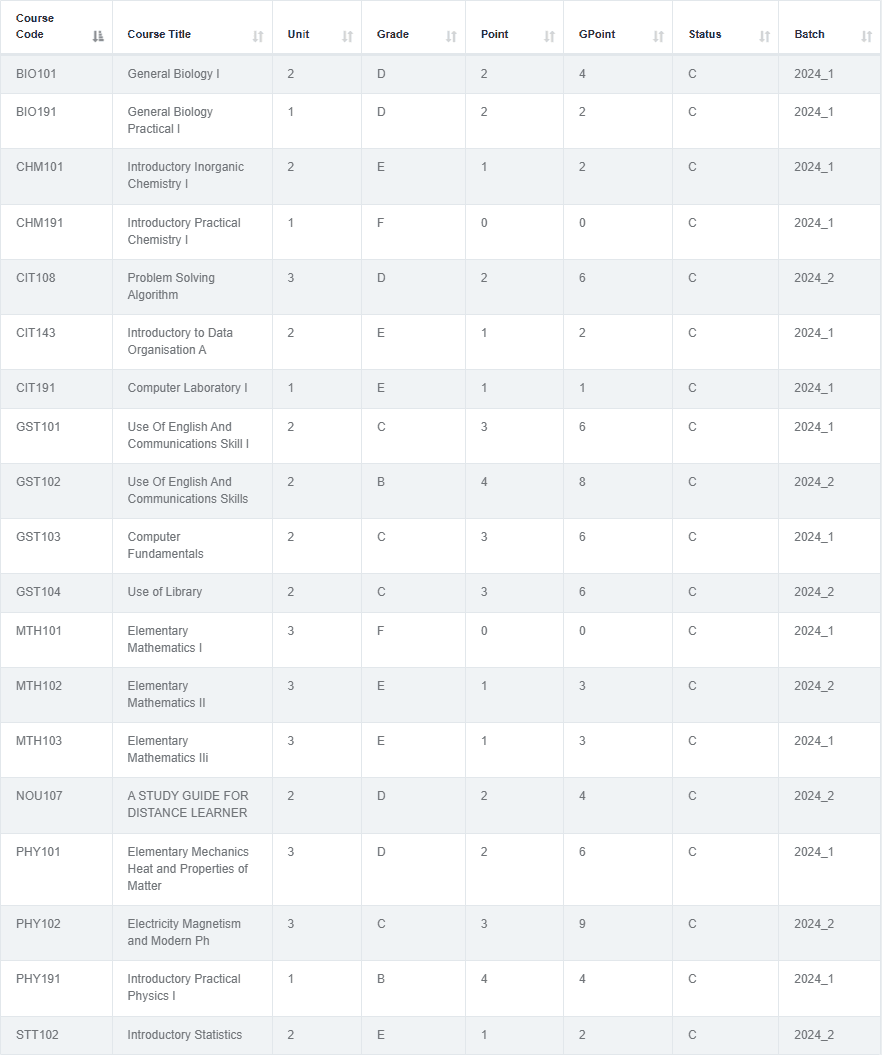
This is the place where the research session confirmed fields such as:
GradePointGPointStatusBatch
So if you need a clearer result record than the first portal screen provided, this is the page to inspect next.
Step 6: Check CGPA, Class Of Degree, And Outstanding Credit Here
The student-portal My progress page did not visibly show CGPA in the observed account. The ERP statement page did.
The earlier editorial pass recorded on that page:
CGPACurrent class of degreeTotal credit earnedOutstanding credit- counts for courses taken, passed, and failed
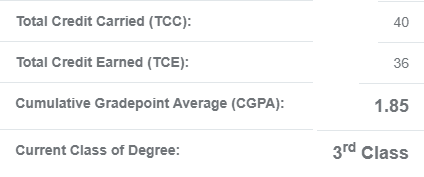
This is an important workflow rule for students: do not assume the first results page is the final academic summary. In the earlier editorial pass, it was only the starting point.
If your main goal is to interpret those metrics, read How To Read NOUN CGPA, Class Of Degree, And Outstanding Credit.
Step 7: Check Outstanding Courses On The Same ERP Page
The ERP statement page also confirmed an Outstanding Courses section. That section showed course records in a separate table rather than only in the main result rows.
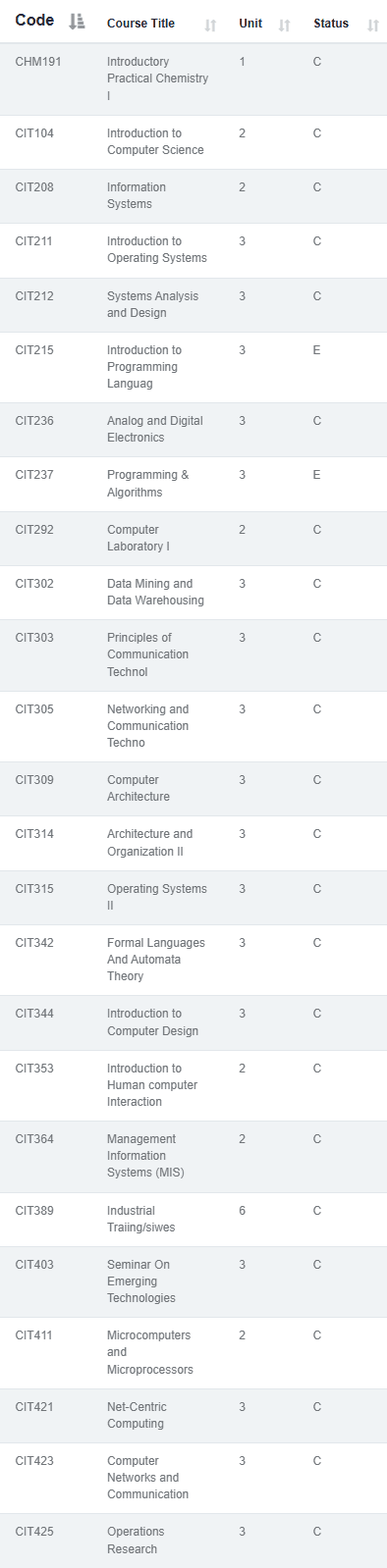
That is useful because students often think they need a separate special workflow just to know whether unfinished requirements are already visible. In the observed account, the system already exposed an outstanding-courses section on the statement page.
For a focused walkthrough, use How To Check Outstanding Courses On NOUN Result Statement.
What To Do When Grades Still Do Not Show Clearly
The observed My progress screen showed the Grade column, but the visible rows displayed dashes. That creates one of the most important student search problems in this cluster: the grade area exists, but the value does not look resolved.
The safest sequence is:
- confirm that
My progressis loading the expected academic periods - move into the Support portal
- open
Result statement - compare the deeper ERP table with the earlier portal screen
- save safe evidence before escalating
Do not jump straight to assumptions like:
- the result is permanently missing
- the portal is broken for everyone
- you need to register the course again immediately
Instead, compare the two surfaces first.
If this is your exact issue, continue with Why Your NOUN Result Grade Is Not Showing.
The Registration Slip Blocker Is Part Of The Results Ecosystem
The research session also observed a related academic-record blocker. When the student opened See course registration slip, the system returned this message:
Please register for the current semester on your home page. See procedure 'K' in 'How to do things' for steps to follow
That matters because students often use registration-history proof to investigate result issues. In the observed account, that verification route was itself gated by current-semester registration status.

If this blocker is your main problem, use Why NOUN Course Registration Slip Says Register For The Current Semester First and then compare it with How To Register NOUN Courses.
Common Mistakes To Avoid
- searching the portal for a
Resultslabel and ignoringMy progress - stopping at the first result screen and never opening the Support route
- assuming dashes in the
Gradecolumn explain the whole issue - expecting CGPA on the first page when the earlier editorial pass found it only on the ERP statement page
- using unverified carryover or transcript advice from random sources
- escalating without screenshots, course codes, or the exact page where the problem appears
Troubleshooting
I can find My progress but not the full result record
That is exactly what the observed workflow prepared for. Use the on-page note, open Support, and continue to Result statement.
My grade column is there, but I only see dashes
Do not stop there. Compare the first portal screen with the ERP statement page before deciding the record is missing.
I need CGPA and class of degree
Check the Support portal route and open Result statement. Those metrics were verified there, not on the first result page.
I need to prove my registration history, but the slip page is blocked
Treat that as a separate blocker tied to current-semester registration. Review the registration workflow before assuming the result record itself is the only problem.
I still need help after checking both pages
Use the official support path and prepare a clear message. How To Use NOUN Support Or e-Ticketing For Result Problems and NOUN Support Ticket Guide will help you prepare the right evidence.
Verification Notes
This guide is based on a live portal session recorded in an earlier editorial pass dated 19 June 2026. That earlier pass recorded My progress as the visible student-portal results entry point, Support plus eTicketing as the escalation bridge, and Result statement in the Support portal as the route then verified to the ERP academic record page. A current source recheck is pending.
This guide does not claim that transcript requests, carryover workflows, or result corrections were verified in the same session. Those remain out of scope until a future live check confirms them.
Quick answers
Open any question for the answer.
01What should I do if a result is missing?
Confirm the course was correctly registered and assessed, collect your records, and report the issue through the appropriate official channel.
02Can NOUN Compass change a result?
No. Only authorized NOUN processes can review or change an academic record.
03Why should I save result records?
Periodic records help you identify changes, plan outstanding courses, and provide context when reporting a discrepancy.
04Where do I first check NOUN results?
Start in the logged-in student portal and open `My progress`.
05Why is My progress important if I want results?
Because that was the visible results/history entry point in the observed session, even though it was not labeled `Results`.
06Where do I find CGPA and class of degree?
The earlier editorial pass recorded those details on the ERP statement-of-result page opened through the Support portal's `Result statement` action.
07What should I do if the grade column only shows dashes?
Use the deeper Support-portal workflow and compare the ERP result page before escalating.
08Did this guide verify transcript or carryover workflows?
No. The earlier editorial pass did not observe those routes, so they are intentionally excluded here.