How to View Your Financial Statement on the NOUN Portal
Use this guide to open your NOUN financial statement, understand the key sections, and spot entries that need a second look.
 NOUNCOMPASS
How to View Your Financial Statement on the NOUN Portal
Use this guide to open your NOUN financial statement, understand the key sections, and spot entries that need a second look.


Use this guide to open your NOUN financial statement, understand the key sections, and spot entries that need a second look. Use the amount shown for your own student record before making a payment.
Where to find and check the record
To view your NOUN financial statement:
- Log into NOUN portal (the official NOUN student portal)
- Open the finance, payment, or statement area shown on your dashboard
- View the record and use any save or export control the current page provides
- Review balances, transactions, and payment history
Treat the page as the portal's current account record, then compare it with your own receipts and payment references.
What To Compare On The Statement
Learn:
- How to access financial statement
- What each section means
- How to understand balances
- How to verify transactions
- What to do if information is wrong
- How to download and save statement
Step-by-Step: Accessing Your Financial Statement
Step 1: Log Into NOUN Portal
- Go to the official NOUN student portal
- Enter Student ID
- Enter Password
- Complete 2FA if prompted
Step 2: Navigate to Financial Statement
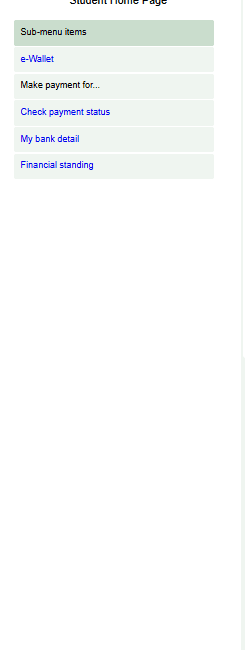
From the dashboard, open the finance or payment area and look for the current statement or transaction-history option. Portal labels can change, so use the route visible on your own account rather than relying on one fixed menu path.
Step 3: Review Statement Contents
The record may include:
Header Information:
- Your name and student ID
- Statement date range
- Account status
Account Balance Section:
- Current balance
- Outstanding balance (amount owed)
- Credit balance (if overpaid)
Transaction History:
- Payments made
- Fees charged
- Adjustments or reversals where they appear in the current record
- Dates and amounts
Understanding Your Financial Statement
Current Balance: Understanding What You See
Balance shows:
- Zero balance: the portal is not showing an amount currently owed
- Positive balance: the portal is showing an amount you still need to settle
- Negative or credit balance: the portal may be showing an overpayment or unused wallet credit
Do not infer the meaning of an unfamiliar balance sign from this article. Compare it with the charge descriptions and current portal guidance.
Transaction History Section
Each transaction shows:
- Date: When transaction occurred
- Description: What was charged or paid (e.g., "School Fees," "Course Materials")
- Amount: Naira amount
- Type: "Charge" (fee) or "Payment" (money in)
- Running Balance: Your balance after that transaction
Frequently Asked Questions
Q1: My statement shows a balance, but I paid. Why?
Compare the payment reference and bank record with the portal entry. If they still disagree, report the mismatch; this page does not verify a fixed update time.
Q2: Can I download my statement?
Use the available print, save, screenshot, or export control. Keep enough detail to show the date range, transaction, and balance without exposing the document publicly.
Q3: What if I see fees I didn't authorize?
Save the charge line, date, amount, and related transaction reference, then use the current official finance or support route.
Q4: My balance looks wrong. Who do I contact?
Email NOUN finance or submit support ticket in portal with your evidence.
Important Warnings
⚠️ Do NOT:
- Share your financial statement with anyone outside NOUN
- Use outdated financial statements for official purposes
- Ignore discrepancies (they could affect your graduation clearance)
- Ignore an unexplained charge or assign it a cause without checking
⚠️ Verify:
- Save a current copy or safe screenshot directly from the portal
- Compare multiple payment receipts with the statement
- Check for duplicate charges or unexplained fees
- Confirm total matches your actual payments
Keep a copy before reporting a mismatch
Keep your receipts beside the portal record so each payment can be matched to a date, amount, and reference. If an entry is missing or unexplained, save the relevant rows and report the difference through the current official route. Retain a private semester copy when the portal provides a safe way to do so.
Related Guides
Verify this information through the official NOUN portal.
Last Updated: June 18, 2026
Requirements Before You Start
Keep the relevant receipts, references, amounts, and date range beside the portal statement. Redact unrelated financial details before attaching evidence to a report.
Common Mistakes
- Comparing your balance with another student's statement.
- Reading a charge without checking its date, session, and description.
- Reporting a mismatch without saving the relevant rows and receipt.
- Sending an unredacted statement to an unofficial helper.
- Paying again before tracing the first transaction on the statement.
Troubleshooting
If a statement entry is missing or unexplained, save the date range, charge or payment row, receipt, and transaction reference. Send that comparison through the current official finance or support route.
Official Sources and Verification Notes
NOUN Compass cannot alter the statement. Use the current portal record and official finance or support response to settle a disputed entry.
Related NOUN Guides
Quick answers
Open any question for the answer.
01Is this an official NOUN guide?
NOUN Compass is independent. Confirm final requirements, dates, fees, and portal instructions through current official NOUN channels.
02What if the official portal shows something different?
Follow the current official portal information and contact your study centre or official support when clarification is needed.
03How often is this guide reviewed?
The displayed last-checked date shows the most recent editorial review, but official processes may change afterward.