NOUN Carryover Pass Mark: What Scores Below 40 Mean
Understand the NOUN carryover pass mark, the programmes where 50% applies, what a score below the required mark means, and how to handle an unresolved course.
 NOUNCOMPASS
NOUN Carryover Pass Mark: What Scores Below 40 Mean
Understand the NOUN carryover pass mark, the programmes where 50% applies, what a score below the required mark means, and how to handle an unresolved course.



Understand the NOUN carryover pass mark, the programmes where 50% applies, what a score below the required mark means, and how to handle an unresolved course. Portal labels can move, so match these steps with the screen in front of you.
NOUN Carryover Pass Mark: Is 40 a Pass?
NOUN's current FAQ says undergraduate students generally require 40% and above to pass, while Nursing programmes and postgraduate programmes typically require 50% and above. The pass mark therefore depends on your programme, not on one universal number for every student.
- Most undergraduate programmes: 40% and above is the general pass mark.
- Nursing programmes: 50% and above is the stated pass mark.
- Postgraduate programmes: 50% and above is the typical pass mark.
- If your score is below the pass mark that applies to your programme, confirm the course status on your result statement before registering it again.
Verify the current rule on the NOUN FAQ on passing grades. Then check outstanding courses on your result statement.
Start with unresolved courses on your result
Students often use carryover for a course that still appears unresolved on their academic record. Confirm the exact course and status on your result statement before trying to register it again.
To register:
- Log into NOUN portal
- Go to "Course Registration"
- Compare the available courses with your result statement and curriculum
- Select only the unresolved course the current portal permits
- Review the units and charge before submitting
- Save the completed registration record
What To Confirm Before Registration
This guide explains how to identify carryover courses, compare them with your result record, manage credit-unit limits, and avoid wrong-course registration.
What Are Carryover Courses?
A course can remain unresolved for different reasons, including a failed grade, an incomplete result, a missed examination, or a curriculum change. The correct next step depends on what your result statement and current programme guidance show. This page does not assume one fee or registration rule applies to every course.
How to Register Carryover Courses
Step 1: Log Into Portal
- Go to the official NOUN student portal
- Enter Student ID
- Enter Password
- Complete 2FA if prompted
Step 2: Find Course Registration
- Open the current course-registration area
- Read the labels shown on your account
- Compare the available options with your records
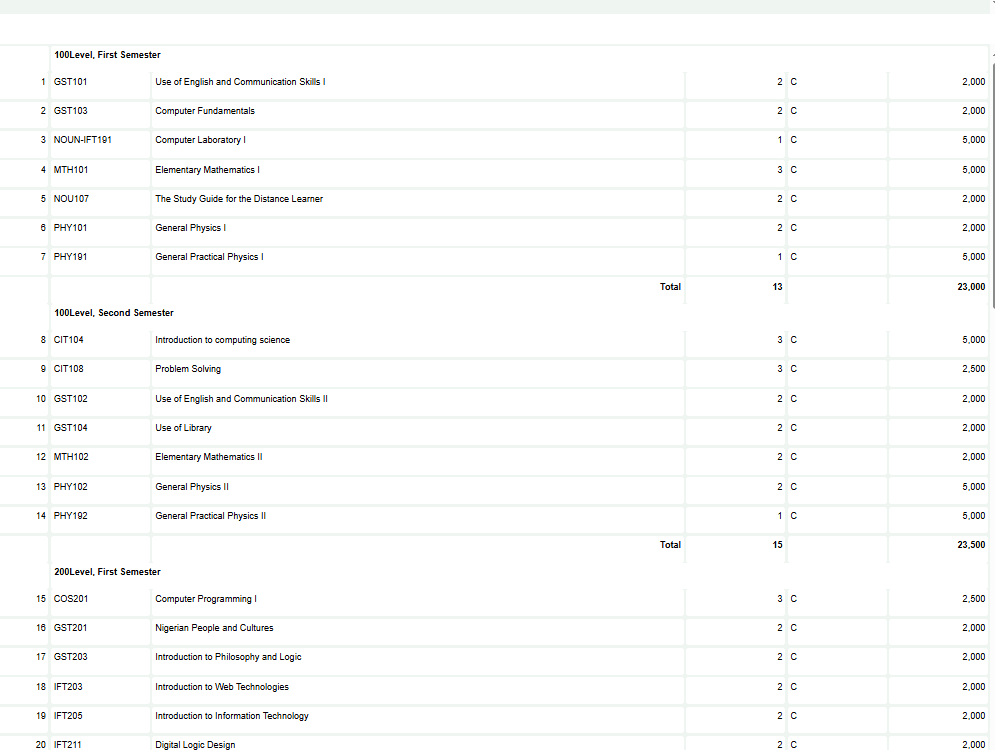
Step 3: Locate Carryover Section
The registration page may separate courses into sections such as:
- Core Courses: Required courses for your program
- Elective Courses: Optional courses
- Carryover Courses: Courses you're retaking
If a carryover section is visible, open it and compare every course code with your result statement. If it is not visible, do not substitute another course just to continue.
Step 4: Select Carryover Courses
- Find the course you need to retake
- Check the checkbox next to it
- Course appears in your selected list
- Repeat only for courses you have confirmed as unresolved
Add the units for the full selection and compare them with the current credit limit shown by the portal or programme guidance.
Step 5: Proceed to Payment
- Review all selected courses
- Click "Proceed to Payment" or "Continue"
- System calculates total fees
- Verify amount includes all courses
- Click "Generate Payment Reference"
Step 6: Complete Payment
- System generates RRR (payment reference)
- Screenshot the RRR
- Use RRR to pay via Remita or bank transfer
- Keep the payment status and reference shown by the portal
Step 7: Verify Registration
- Return to course registration after the payment status is confirmed
- Open the submitted course list
- Verify carryover courses appear as registered
- Download registration slip as proof
Registration Checks Students Commonly Miss
Mistake 1: Forgetting to Select Carryover Courses
Compare the selected list with the unresolved courses on your result statement. A course is not confirmed just because it appears under a particular portal heading.
Mistake 2: Exceeding Course Limit
Add the units for regular, elective, and carryover courses before submitting. Follow the current limit attached to your programme or portal.
Mistake 3: Registering Same Course Twice
Accidentally selecting a course in both regular and carryover sections.
Solution: Review selected courses before paying. Only select each course once.
Mistake 4: Missing Carryover Deadline
Use the current registration notice for deadlines. This page does not assume every course has the same window.
Quick answers
Open any question for the answer.
01Is this an official NOUN guide?
NOUN Compass is independent. Confirm final requirements, dates, fees, and portal instructions through current official NOUN channels.
02What if the official portal shows something different?
Follow the current official portal information and contact your study centre or official support when clarification is needed.
03How often is this guide reviewed?
The displayed last-checked date shows the most recent editorial review, but official processes may change afterward.
04Q1: Do carryover courses cost extra?
Use the amount generated for the course on your own portal; this page does not verify one carryover fee for every programme.
05Q2: Can I register all my failed courses at once?
Register only the unresolved courses that fit the current credit limit and are available to your record.
06Q3: What if I already passed a course but want to retake for higher grade?
Do not infer NOUN's rule from other universities. Ask the current official academic-support route before registering a passed course again.
07Q4: Does a carryover course count differently on my transcript?
This page does not verify how repeated attempts are displayed or calculated. Use your current result statement and official academic guidance.