Why Your NOUN Result Grade Is Not Showing
Learn the verified way to investigate a NOUN result grade that is not showing by comparing My progress with the Support-portal result statement and preparing the right evidence before escalating.
 NOUNCOMPASS
Why Your NOUN Result Grade Is Not Showing
Learn the verified way to investigate a NOUN result grade that is not showing by comparing My progress with the Support-portal result statement and preparing the right evidence before escalating.


Learn the verified way to investigate a NOUN result grade that is not showing by comparing My progress with the Support-portal result statement and preparing the right evidence before escalating. Treat your official result statement as the final academic record.
What Should You Check When A Grade Is Blank?
In the observed NOUN portal session, the Grade column existed on My progress, but the visible rows showed dashes. The safest response is not to assume the final reason. First confirm the page is loading the expected academic periods, then open the Support portal and compare the deeper ERP result statement. If the grade still does not resolve there, save evidence and use the official support route.
What Was Actually Observed
The live session confirmed three facts that matter for this issue:
My progressis the first results page- the page includes a
Gradecolumn - visible rows on this account displayed
-
What the session did not confirm:
- whether the dash meant pending upload
- whether it meant a missing record
- whether it meant a faculty-specific delay
That boundary matters. This guide helps you investigate the problem using verified surfaces. It does not invent reasons the system did not show.
Why This Problem Feels Bigger Than It Is
When students see a dash in the grade area, they often jump straight to major conclusions:
- my result is gone
- the portal failed
- I need to register again immediately
- I have failed and the portal has not updated properly
The workflow recorded in the earlier editorial pass suggests a calmer approach. In that session, one page showed partial information and a second, deeper result path appeared through Support. Compare the current surfaces before interpreting the outcome.
Step 1: Confirm You Are On My Progress
The earlier editorial pass recorded My progress, not a menu explicitly called Results, as its first result screen. Compare that historical entry point with the current interface.
Check whether the page already shows:
- course rows
- academic periods such as
2024_1or2024_2 - the
Gradecolumn - cumulative passed-credit summaries
If these elements are present, then the academic-history page is loading and you are in the right place to begin.
Step 2: Note What The Grade Area Actually Shows
Do not summarize the issue vaguely as my result is not showing. Be precise about what you see.
In the observed session, the correct description would have been:
- the
Gradecolumn is visible - the current visible rows show
-
That is a better starting point than saying the entire result page is missing. It tells you the system is returning structure, but not the final value you expected.
Step 3: Move To The Deeper Result Surface
The next step is essential. The My progress page itself instructed students to use Support and eTicketing to see more results.
So the verified comparison workflow is:
- open
My progress - note the dash or incomplete grade state
- go to
Support - log into the Support portal
- click
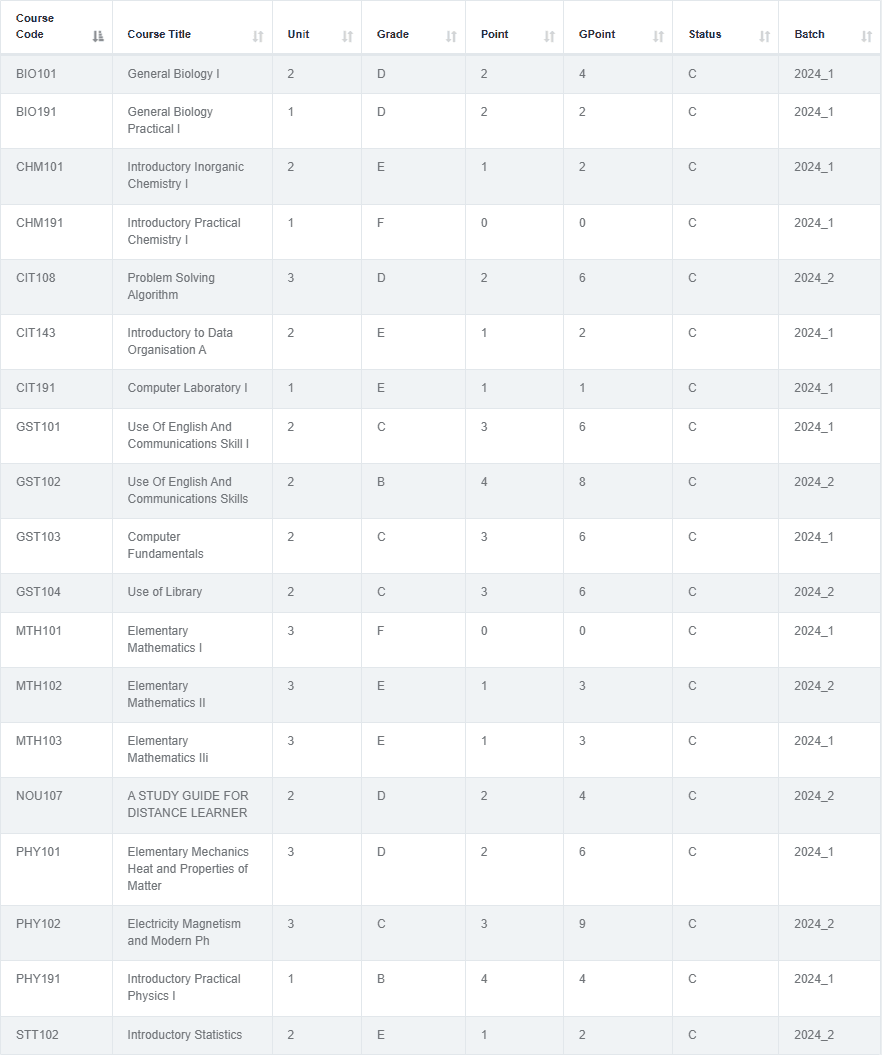
Result statement - review the ERP grade table
This is the correct way to test whether the problem is only on the first page or whether it still appears in the deeper record.
Step 4: Compare Both Result Surfaces
Use this comparison checklist:
- does
My progressshow the expected periods? - does the ERP statement page load a detailed course table?
- do the course codes line up with what you expect?
- does the deeper page show the same incomplete state or more detail?
- are batches such as
2024_1and2024_2visible?
This comparison matters because it turns a vague complaint into a traceable result problem.
Step 5: Save The Right Evidence
Before you escalate, collect safe evidence:
- a safe screenshot of the
My progresspage state - a safe screenshot of the ERP grade table or relevant section
- the course code
- the period or batch visible on the page
- the exact wording of the issue you saw
This is much stronger than writing a message that only says my grade is not showing.
What Not To Assume
Because the session did not verify the underlying reason for the dash, avoid unsupported claims like:
- the result has been withheld
- the portal is waiting for a correction request
- the system is showing a carryover label somewhere hidden
- the grade must appear after a fixed number of days
The earlier editorial pass did not establish any of those causes.
Common Mistakes To Avoid
- confusing
Grade column existswithfull grade is confirmed - stopping at My progress and never checking the ERP result page
- describing the issue too broadly when support needs page-specific evidence
- mixing up different academic periods
- using an old screenshot as if it proves the current record
Troubleshooting
The grade column is there, but all I see is a dash
That is exactly the verified problem pattern. Move to the Support-portal result statement and compare the deeper table.
I can see some history, but not enough to trust the result
Use the ERP statement page as the second verification layer. That page exposed fuller academic detail in the observed session.
I still do not understand whether the issue is a result problem or a registration problem
Check whether related record-proof routes are blocked. If your registration-slip path is blocked, use Why NOUN Course Registration Slip Says Register For The Current Semester First and How To Register NOUN Courses.
I need to escalate the issue
Prepare a clean support message and use How To Use NOUN Support Or e-Ticketing For Result Problems together with NOUN Support Ticket Guide.
Verification Notes
This article is based on the live workflow recorded in an earlier editorial pass dated 19 June 2026. That earlier pass recorded a Grade column on My progress, dashes in the visible rows of the observed account, and a deeper result-statement route through the Support portal. It did not establish the final internal reason the dash appeared. A current source recheck is pending.
Quick answers
Open any question for the answer.
01Is this an official NOUN guide?
NOUN Compass is independent. Confirm final requirements, dates, fees, and portal instructions through current official NOUN channels.
02What if the official portal shows something different?
Follow the current official portal information and contact your study centre or official support when clarification is needed.
03How often is this guide reviewed?
The displayed last-checked date shows the most recent editorial review, but official processes may change afterward.
04Does a dash on My progress automatically mean failure?
The earlier editorial pass did not establish that interpretation. It recorded only that the grade column existed and the visible rows showed dashes.
05What page should I check after seeing a dash?
Open the Support portal and use `Result statement` to compare the deeper ERP record.
06Should I raise a complaint immediately?
Check both result surfaces first, then escalate with specific evidence if the issue still remains.
07Did this guide verify a correction workflow?
No. Result-correction workflow was not directly observed in this phase.