How To Open Your NOUN Result Statement From The Support Portal
Learn the verified NOUN Support portal workflow for opening Result statement and reaching the ERP statement-of-result page that shows grades, CGPA, outstanding credit, and outstanding courses.
 NOUNCOMPASS
How To Open Your NOUN Result Statement From The Support Portal
Learn the verified NOUN Support portal workflow for opening Result statement and reaching the ERP statement-of-result page that shows grades, CGPA, outstanding credit, and outstanding courses.


Learn the verified NOUN Support portal workflow for opening Result statement and reaching the ERP statement-of-result page that shows grades, CGPA, outstanding credit, and outstanding courses. Treat your official result statement as the final academic record.
How Do You Reach The Result Statement?
The more detailed result page recorded in the earlier editorial pass was not inside the first student-portal result screen. In that pass, the student used Support, moved into the separate portal at support.nou.edu.ng, logged in, and clicked Result statement. That opened the ERP page at erp.nou.edu.ng/stsor.
Why This Page Matters
Many students stop at My progress and assume that is the whole result workflow. The live session showed otherwise. My progress gave an initial academic-history view, but the fuller academic record appeared only after moving through the Support portal.
The earlier editorial pass recorded on that deeper page:
- a full grade table
- CGPA
- current class of degree
- total credit earned
- outstanding credit
- outstanding courses
Export as PDFPrint
So if you need more than a basic result-history screen, this is the route that matters most.
The Exact Verified Path
The observed workflow was:
- log into the NOUN student portal
- open
My progress - read the note that points to
SupportandeTicketing - open
Support - locate
Drop a complaint (e-Ticketing) - move to the Support login page
- log into the Support portal
- open
Result statement - allow the system to open the ERP result page in a new tab
The verified Support login route was:
https://support.nou.edu.ng/login/
The authenticated dashboard route observed was:
https://support.nou.edu.ng/user
The final statement-of-result destination was:
https://erp.nou.edu.ng/stsor
What We Actually Observed After Support Login
The reviewed Support dashboard included these result and support options:
- ticket history
- student actions
- a dedicated
Result statementaction
That action is what makes this workflow valuable. It bridges the gap between the main student portal and the stronger ERP academic-record page.
This is why students searching only for a results button can get stuck. The best result surface is hidden behind a second authenticated step.
Step-By-Step Guide
Step 1: Start from the student portal result area
Open My progress first. The live portal itself told students to use Support and eTicketing to see more results.
If you need help finding that first page, read How To Find NOUN Results On My Progress.
Step 2: Use the Support route the portal recommends
Open Support from the portal. The observed support area included Drop a complaint (e-Ticketing) and result-related support categories such as Registry.
That means the support path is part of the real result workflow, not a random side tool.
Step 3: Log into the Support portal
The verified login route was https://support.nou.edu.ng/login/. Use your own student access and keep control of your credentials.
Do not trust forwarded shortcuts that skip the official portal path. A clean support login is safer than chasing screenshots from other students.
Step 4: Open Result statement
After login, look for Result statement in the student actions. In the observed session, the app triggered an internal function and opened the result page in a new tab.
The page that opened was the ERP statement interface, not the same page as My progress.
Step 5: Review the ERP page carefully
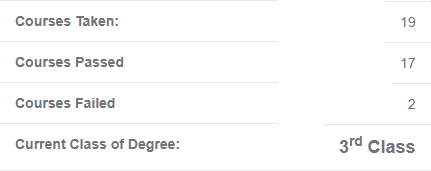
Once the ERP page opens, do not only glance at the first visible block. The observed page had several academic sections:
- the full grade table
- summary statistics
- performance standing
- outstanding courses
What The Result Statement Helps You Check
The Support-portal result statement was the strongest page for these questions:
- do full grade records load?
- are batches like
2024_1and2024_2visible in the detailed table? - is CGPA displayed?
- is current class of degree displayed?
- are passed and failed counts visible?
- is outstanding credit visible?
- does the system list outstanding courses already?
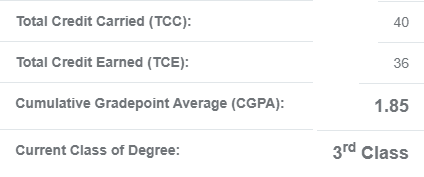
This makes the page useful for much more than a quick grade check. It is the academic-summary surface that helps students understand progression.
What This Page Does Not Prove
The workflow recorded in the earlier editorial pass showed how that session reached the result statement. It did not prove:
- transcript requests
- carryover workflow labels
- result correction process
Those should not be added to your assumptions just because you reached the ERP page.
Common Mistakes To Avoid
- stopping at
My progressand never opening Support - assuming Support is only for complaints and not for result access
- forgetting that the result page opens in a new tab
- using the ERP page without saving safe evidence
- confusing verified result-statement access with unverified transcript or correction workflows
Troubleshooting
I can log into the student portal but not find the result statement
That is normal if you are still in the main portal. The result statement was verified inside the separate Support portal after login.
I am in Support, but I am not sure what to click
Look for Result statement. That was the key action observed on the authenticated Support dashboard.
The first result page still feels incomplete
That is exactly why this route matters. The ERP statement page goes deeper than My progress.
I need to understand the grades after the page opens
Use Why Your NOUN Result Grade Is Not Showing, How To Read NOUN CGPA, Class Of Degree, And Outstanding Credit, and How To Check Outstanding Courses On NOUN Result Statement.
Verification Notes
This guide is based on the live session recorded in an earlier editorial pass dated 19 June 2026. The Support portal login page, authenticated dashboard, Result statement action, and ERP destination were all directly observed. The article does not claim any transcript or correction workflow beyond that. A current source recheck is pending.
Quick answers
Open any question for the answer.
01Is this an official NOUN guide?
NOUN Compass is independent. Confirm final requirements, dates, fees, and portal instructions through current official NOUN channels.
02What if the official portal shows something different?
Follow the current official portal information and contact your study centre or official support when clarification is needed.
03How often is this guide reviewed?
The displayed last-checked date shows the most recent editorial review, but official processes may change afterward.
04Is the result statement inside the main NOUN student portal?
Not in the workflow recorded by the earlier editorial pass. That session reached the stronger result-statement page through the separate Support portal.
05What page opens after I click Result statement?
The verified destination was `https://erp.nou.edu.ng/stsor`.
06Why should I use the Support portal if I only want results?
Because the first student-portal result page did not expose the full academic summary. The Support route opened the fuller statement page.
07Can I print or export the result statement?
Yes. The observed ERP page showed `Export as PDF` and `Print`.
08Does this guide verify transcript access?
No. Transcript workflow was not verified in this phase.