How To Submit TMA On NOUN eLearn
Follow the NOUN eLearn TMA submission steps from the activity page to the final attempt summary without guessing the workflow.
 NOUNCOMPASS
How To Submit TMA On NOUN eLearn
Follow the NOUN eLearn TMA submission steps from the activity page to the final attempt summary without guessing the workflow.

Follow the NOUN eLearn TMA submission steps from the activity page to the final attempt summary without guessing the workflow. Check any account-specific step against your own NOUN record.
What Should You Read Before Starting A TMA?
To submit a TMA on NOUN eLearn, first open the correct TMA activity page, verify the Opened and Closed timestamps, confirm the number of allowed attempts, and only then proceed through the official Attempt TMA Now path. After the work is completed, check the attempt summary for Status, Started, Completed, and Duration, then verify the score through Grades.
Read the course name, TMA label, timing fields, and attempt limit before opening the attempt.
Important Scope Note
This guide is based on a real observed eLearn workflow, but the live session did not expose a fresh first-time editable TMA screen because the visible TMAs had already been completed. That means this article documents:
- the real pre-action checks shown on the TMA page
- the observed instruction label
Attempt TMA Now - the visible attempt restriction
- the real finished-state summary after submission
- the real grade-report path after submission
It does not invent button-by-button steps for an unobserved form.
What The TMA Page Showed Before Action
The observed TMA page displayed several critical items directly in the activity header:
- completion requirements
OpenedClosed- the line
Click on Attempt TMA Now to begin the TMA Attempts allowed: 1
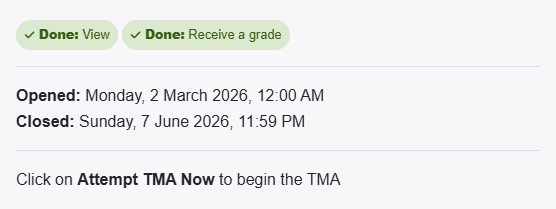
This is the safest place to begin because it answers the most urgent student questions before submission:
- is this the right TMA?
- is it already open?
- has the close time passed?
- how many tries do I get?
If you skip those checks, you increase the chance of using your only allowed attempt carelessly.
The Submission Workflow We Can Confirm
Based on the live session, the reliable workflow is:
- find the correct course and TMA
- open the TMA activity page
- read the timing and attempt rules
- use the official attempt path only when ready
- after finishing, verify the attempt summary
- check the grade surfaces later
This is not generic advice. It matches the exact page structure observed in eLearn.
If you still need help with the route into the TMA page itself, read How To Find TMA On NOUN eLearn. If you want the wider context around eLearn, use the pillar guide.
What To Do Before Clicking Attempt TMA Now
Step 1: Confirm the course and TMA label
Make sure the visible TMA belongs to the correct course. In the observed session, the course was Numerical Analysis (MTH213_261) and the TMA labels were clearly separated into TMA1, TMA2, and TMA3.
Step 2: Read the Opened and Closed fields
Do not assume the assignment is active because you can see the page. The activity header explicitly displayed timing.
Step 3: Check Attempts allowed
The observed TMAs displayed Attempts allowed: 1. That should change your behavior immediately. One-attempt tasks should never be opened casually.
Step 4: Prepare your environment
Before using the official attempt path, make sure you are on a stable connection, in the correct account, and free from distractions. This is especially important when the observed workflow shows only one chance.
Step 5: Save the right evidence after completion
Once the task is done, the post-submission state matters. You want proof that the system recorded the attempt.
What The Finished State Looked Like
The observed TMA page showed a real post-submission attempt summary with these fields:
Status FinishedStartedCompletedDurationReview not permitted
The page also stated:
No more attempts are allowed
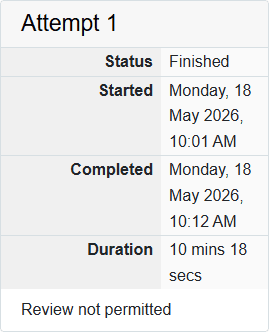
That is one of the most practical findings from the whole research session. Many students think success should be obvious from one large message. In the observed workflow, success was better verified by reading the attempt summary card.
How To Confirm A TMA Really Went Through
After submission, use this checklist:
- open the same TMA activity page again
- look for the attempt summary card
- confirm
Status Finished - confirm the recorded
StartedandCompletedtimes - note the
Duration - check whether the page says
Review not permitted - move to
Gradesto verify scoring later
This is a safer pattern than depending on memory or assuming the LMS saved everything because the screen changed briefly.
Where To Check The Score After Submission
The score did not live only on the TMA page. The observed workflow showed two score-related surfaces:
- the broader
Gradesoverview - the course-specific grade report
The course-specific grade report was the stronger surface because it showed each TMA as a separate line item with:
- weight
- raw grade
- percentage
- contribution to the course total
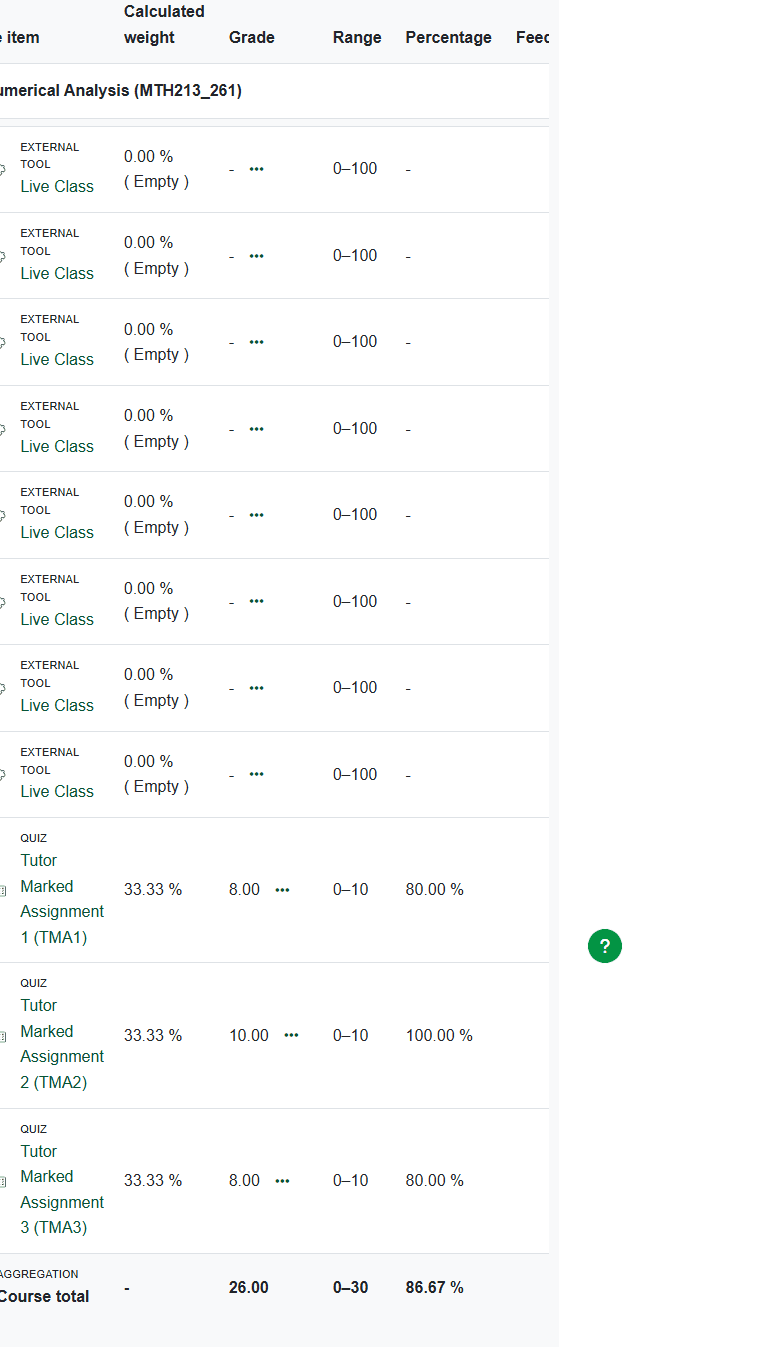
That means submission and scoring should be treated as two related but separate checks:
- the TMA page confirms attempt state
- the grade report confirms mark visibility
If the mark is missing or delayed, read Why Your NOUN TMA Score Is Not Showing.
Common Submission Mistakes To Avoid
- opening the TMA without first reading
Opened,Closed, andAttempts allowed - assuming the task permits several tries
- confusing the TMA page with the grade-report page
- failing to verify the finished attempt summary after the task
- rushing because the dashboard shortcut made the TMA easy to open
- asking for support without a course code, TMA name, or safe screenshot
These mistakes are avoidable because the observed platform already exposes the signals students need. The issue is usually attention, not a lack of labels.
Troubleshooting
The TMA page is visible but I am not ready to start
Do not click through just because you found the page. Read the timing and attempt rule, then return when you are prepared.
The page still says Attempt TMA Now but also looks completed
In the observed session, the instruction line remained visible while the attempt summary below clearly showed Finished. Read the whole page, not only the top instruction.
I finished the TMA but I cannot tell whether it saved
Check the attempt summary for Status Finished, Started, Completed, and Duration. That was the strongest post-submission proof in the observed workflow.
I need to know whether the score has appeared
Move out of the TMA page and check Grades, especially the course-specific grade report.
I still need official help
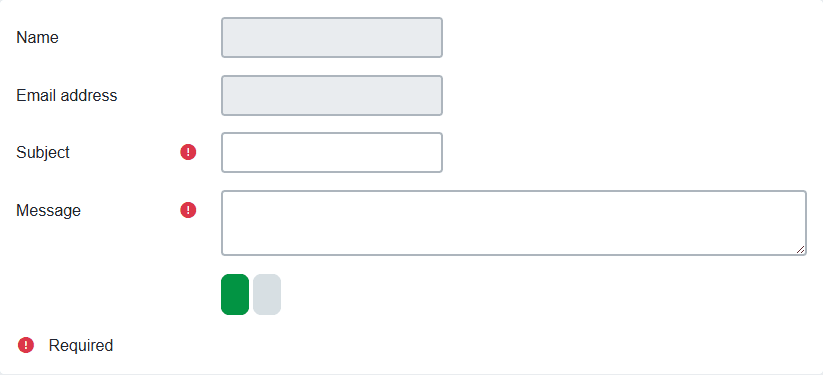
Prepare a safe screenshot of the TMA state, note the course code and TMA label, then use the observed eLearn support form or the NOUN Support Ticket Guide.
Verification Notes
An earlier editorial pass dated 19 June 2026 recorded a one-attempt rule, visible open and close timestamps, a post-submission summary, and a grade-report path in the observed course. It did not record a first-time editable TMA form because the visible TMAs were already finished. A current source recheck is pending.
Use the page to recognise the observed sequence, but read the wording and timing on your own course activity.
Quick answers
Open any question for the answer.
01What must I check before starting a TMA?
Check the TMA page for the Opened date, Closed date, and Attempts allowed value before using the Attempt TMA Now path.
02How many attempts were visible in the observed workflow?
The observed TMAs displayed Attempts allowed: 1. Confirm your own activity page before acting.
03What happens after submission?
The observed finished-state page showed Status Finished, Started, Completed, Duration, Review not permitted, and No more attempts are allowed.
04What should I check before starting a TMA?
Check the course name, the TMA label, the `Opened` and `Closed` fields, and `Attempts allowed`.
05How many attempts were visible?
The observed TMAs showed `Attempts allowed: 1`.
06How do I know a TMA was really submitted?
Check the post-submission attempt summary for `Status Finished`, `Started`, `Completed`, and `Duration`.
07Where should I check the mark?
Use the broader `Grades` area and the course-specific grade report, not only the TMA page.
08What if the workflow still looks wrong?
Stop, capture safe evidence, and use the official support route instead of repeating the action blindly.