NOUN eLearn and TMA Guide: How To Find Courses, Open TMAs, Submit Correctly, Avoid Mistakes, And Check Scores
Use this NOUN eLearn and TMA guide to find courses, locate TMA pages, confirm attempt rules, avoid common mistakes, and check scores through the real workflow observed on the platform.
 NOUNCOMPASS
NOUN eLearn and TMA Guide: How To Find Courses, Open TMAs, Submit Correctly, Avoid Mistakes, And Check Scores
Use this NOUN eLearn and TMA guide to find courses, locate TMA pages, confirm attempt rules, avoid common mistakes, and check scores through the real workflow observed on the platform.


Use this NOUN eLearn and TMA guide to find courses, locate TMA pages, confirm attempt rules, avoid common mistakes, and check scores through the real workflow observed on the platform. Check any account-specific step against your own NOUN record.
The Observed Route From Course Page To Grades
In the session recorded in an earlier editorial pass dated 19 June 2026, the useful route started on the dashboard or course page, continued through the course TMA section, and ended in Grades. Read the Opened, Closed, and Attempts allowed values on your own activity before proceeding. A current source recheck is pending.
Use this order:
- Open
Dashboard. - Use
Recently accessed itemsor open the course page. - Scroll to the course
TMAsection. - Open
TMA1,TMA2, orTMA3. - Check the attempt rules before doing anything.
- After submission, confirm the finished state and then check
Grades.
What This Guide Covers
This page is based on direct observation inside a logged-in NOUN eLearn account recorded in an earlier editorial pass dated 19 June 2026. It does not substitute generic Moodle advice or recycled forum answers for the labels seen in that account.
You will learn:
- how the observed eLearn dashboard is laid out
- where TMAs were actually found
- how the course page exposed TMA links
- what the TMA page showed before and after submission
- where scores appeared
- what confusion points matter most
- which NOUN Compass guides fit before and after the TMA stage
What We Actually Observed In eLearn
During the live session, these surfaces were directly visible:
DashboardMy courses- a full course page for
Numerical Analysis (MTH213_261) TMA1,TMA2, andTMA3- the broader
Gradesoverview - the course-specific grade report
- the
Contact site supportform
That matters because this guide stays inside what was actually seen. Where the session did not expose a live first-time submission form, the guide says so plainly instead of inventing steps.
Start With The Dashboard, Not Guesswork
The dashboard was the clearest place to start after login. It showed several blocks, but the most useful one for TMA discovery was Recently accessed items.
That block contained direct links to:
Tutor Marked Assignment 1 (TMA1)Tutor Marked Assignment 2 (TMA2)Tutor Marked Assignment 3 (TMA3)- discussion forums for the same course
If you have already visited a course or TMA before, this shortcut can save time and reduce the chance of opening the wrong area.
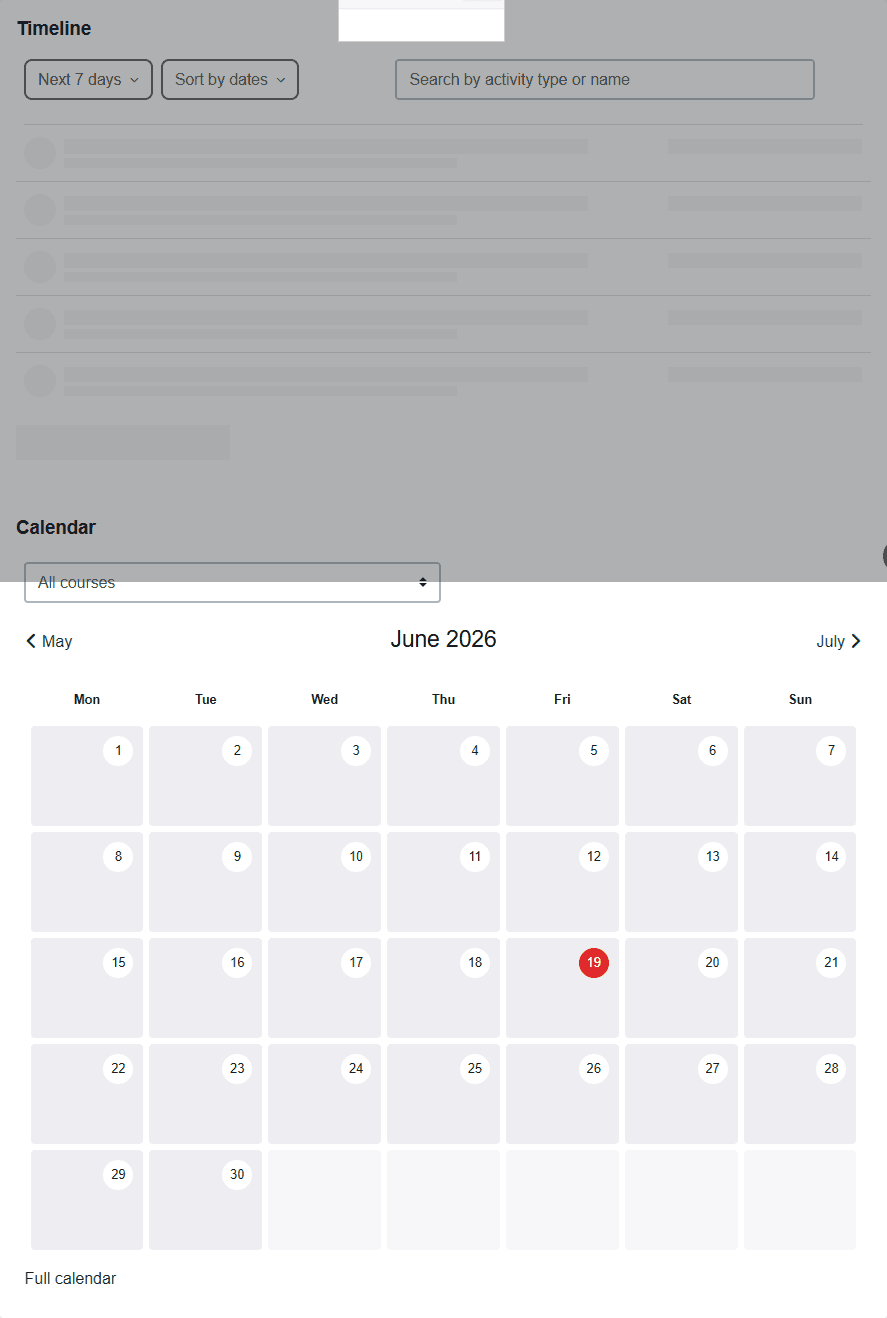
The dashboard also showed a video guide, a timeline block, a calendar block, and footer help links. Those sections do not replace the course page, but they do help you confirm that you are inside the right learning platform before you start working.
If you are still trying to understand the wider student ecosystem around eLearn, review the course registration guide, the exam registration guide, the results guide, and the support ticket guide. Those pages connect directly to the work you do inside eLearn.
How To Find Your Course Before You Find The TMA
In the observed session, My courses was visible but not the easiest place to begin. Its controls loaded, yet the enrolled course list was not as obvious as the dashboard and direct course view. That matters because many students will naturally assume My courses is always the simplest route.
The more reliable workflow from the observed account was:
- open the dashboard
- use a direct recent link if one is available
- otherwise open the course page itself
- move through the course sections until you reach
TMA
The course page for Numerical Analysis (MTH213_261) was long and section-heavy. It included:
GeneralEnsuring Academic Integrity: Your Path to True SuccessMeet Your FacilitatorIntroductionVirtual LibraryWeek 1throughWeek 6RevisionTMACourse Feedback
That structure tells us two useful things. First, TMAs may sit well below the opening sections. Second, students who stop at the first visible week or discussion forum can easily miss the dedicated TMA block completely.

If you are still completing the academic steps that unlock useful course activity, it helps to review NOUN course registration, carryover course registration, course materials access, and the wider portal guide.
The Real TMA Entry Paths We Saw
The live session revealed three real paths into a TMA:
Dashboard->Recently accessed items-> direct TMA linkCourse page->TMAsection -> chooseTMA1,TMA2, orTMA3TMA activity page->Course index->TMAsubsection -> switch between TMAs
On the observed course page, the dedicated TMA block listed all three assignments clearly.
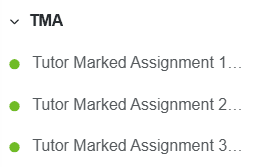
For the observed course only, that confirmed a three-TMA pattern. Use it as a verification habit, not as a blanket assumption for every other course.
What To Check On The TMA Page Before You Act
Once a TMA activity page opened, the most important details were in the activity header and summary area. The observed page showed:
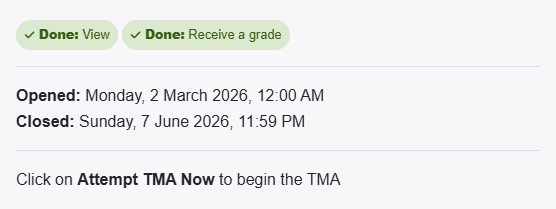
OpenedClosedAttempts allowed: 1- the instruction
Click on Attempt TMA Now to begin the TMA
The observed TMA1 page displayed:
- Opened:
Monday, 2 March 2026, 12:00 AM - Closed:
Sunday, 7 June 2026, 11:59 PM
Those exact dates belong to the observed course and TMA only. The lesson is not to copy the date. The lesson is to train yourself to look for the Opened and Closed fields on your own activity page before you rush into the task.
If you want the full navigation detail just for this step, continue with How To Find TMA On NOUN eLearn. If your main concern is timing, also review the NOUN TMA deadline guide.
What We Could And Could Not Observe About Submission
The live session did not expose a brand-new unattempted TMA form because the observed TMAs were already finished. That is an important limit, and it should shape how you use this page.
What we could confirm directly:
- the page uses an
Attempt TMA Nowpath when available - the observed TMAs allowed one attempt
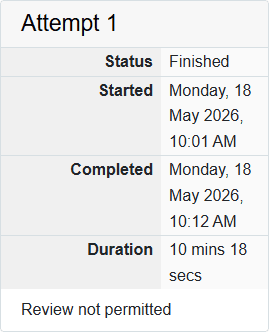
- after completion, the page showed a finished attempt summary
- the finished state showed
Status,Started,Completed,Duration, andReview not permitted - the page then stated
No more attempts are allowed
So the safest practical workflow is:
- open the TMA page
- check the dates and attempt rule
- use the official attempt path only when you are ready
- once the attempt is done, verify the finished-state summary
- move to the grade surfaces to confirm the score later
For a page focused only on the action and post-submission checks, read How To Submit TMA On NOUN eLearn.
Where TMA Scores Actually Appeared
The observed workflow showed two grade surfaces:
- a general
Gradesoverview with course totals - a course-specific grade report with detailed line items
The course-specific report was the stronger verification surface because it showed:
Tutor Marked Assignment 1 (TMA1)Tutor Marked Assignment 2 (TMA2)Tutor Marked Assignment 3 (TMA3)- calculated weights
- raw scores
- percentages
- the
Course total
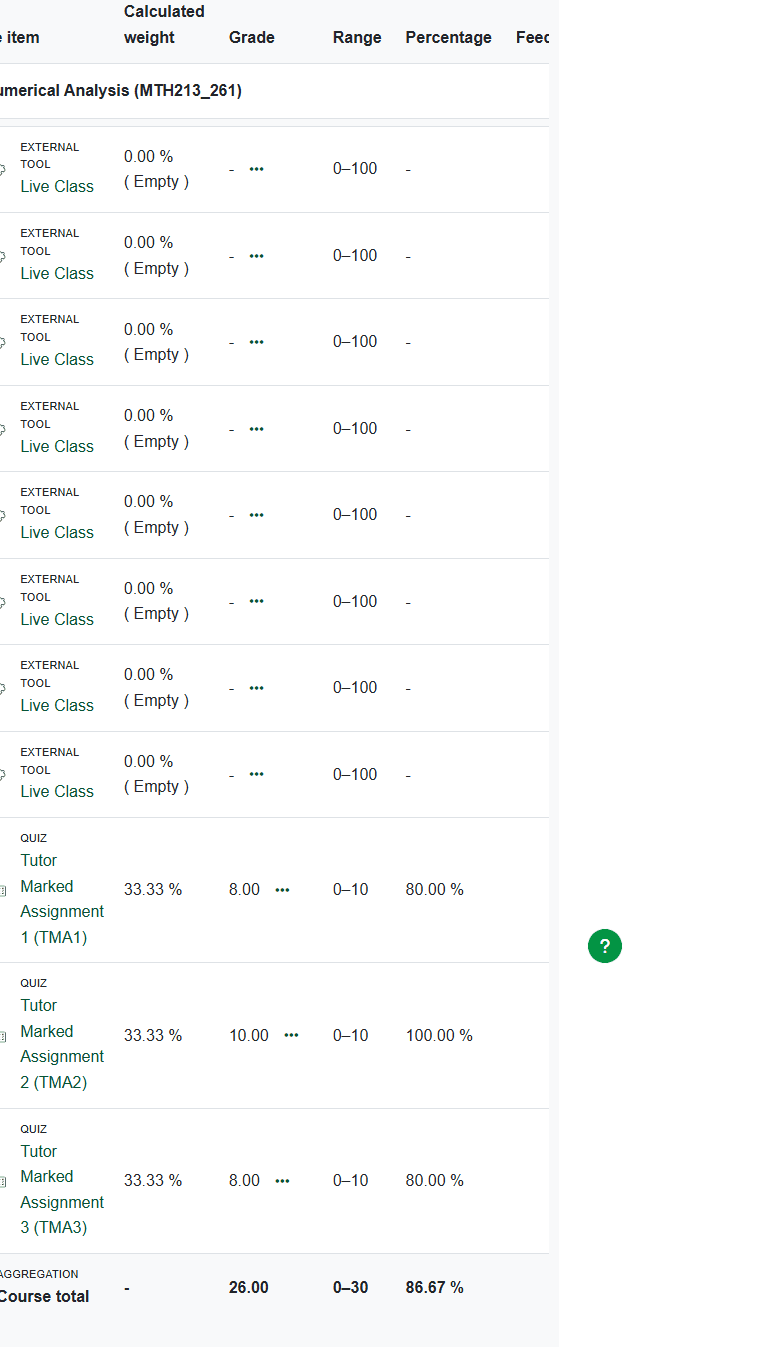
This is one of the most useful distinctions in the whole workflow. Students often think the TMA page itself will answer every scoring question. The live session showed that the TMA activity page and the grade report do different jobs.
- The TMA page explains timing and attempt state.
- The grade report confirms how marks appear inside the course record.
If your main problem is a missing mark, continue with Why Your NOUN TMA Score Is Not Showing.
Common Mistakes To Avoid
The observed platform made these mistakes especially likely:
- relying on
My courseseven when it is not the clearest route - stopping near the top of the course page and never reaching the
TMAsection - reading
Attempt TMA Nowbut missing the finished-state summary below it - forgetting that
Attempts allowed: 1means the task should not be rushed - looking only at the TMA page when the mark is actually clearer in
Grades - contacting support without the course code, TMA name, or safe screenshots
If you want the mistake list turned into a full prevention checklist, read Common TMA Mistakes Students Make.
Troubleshooting The eLearn To TMA To Grades Journey
The course page opens but you cannot find the TMA section
Return to the dashboard, confirm you are in the correct course, then scroll the course structure carefully. In the observed course, the TMA section came after Revision.
The dashboard is visible but you do not trust the shortcut
Use the course page as the second verification route. Do not depend only on a recent item if the course name or TMA label feels unclear.
The TMA page opens but the score is not obvious
Open Grades, then check the course-specific grade report. That was the clearest score surface in the live session.
The page looks finished and you are not sure whether the TMA really submitted
Look for the attempt summary fields: Status, Started, Completed, and Duration. Those were the strongest post-submission indicators in the observed workflow.
The workflow still does not make sense
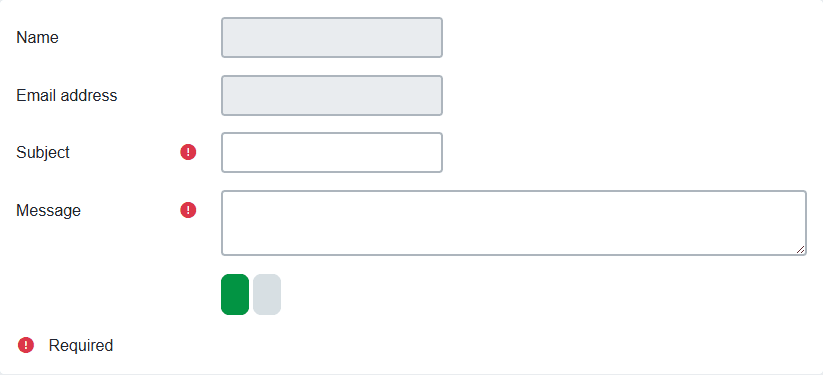
Prepare a clean support request with the course code, TMA label, safe screenshots, and the exact page where the confusion starts. Then use the official support route shown on eLearn or the preparation steps in NOUN Support Ticket Guide.
Verification Notes
This guide is based on a live NOUN eLearn session recorded in an earlier editorial pass dated 19 June 2026. The observed course was Numerical Analysis (MTH213_261). The research confirmed a three-TMA structure for that course, visible Opened and Closed timestamps on TMA activity pages, a one-attempt rule on the observed TMAs, and a clear grade-report path for TMA scores.
What was not directly observed in a live editable state:
- a first-time open TMA form before any attempt
- cross-course variation for TMA count or retry rules
Use this page as a verification map, then confirm your own course and TMA details inside the current official eLearn interface.
Quick answers
Open any question for the answer.
01How can I find my TMA on NOUN eLearn?
In the observed eLearn session, TMAs were reachable from the dashboard's Recently accessed items area, from the course page's TMA section, and from the course index inside a TMA activity page.
02How many TMAs did the observed course have?
The observed Numerical Analysis course showed three TMAs: TMA1, TMA2, and TMA3. Confirm your own course page before assuming the same structure applies everywhere.
03Where do TMA scores appear?
The observed eLearn workflow showed scores most clearly in the course-specific grade report, with overall course totals also visible in the broader Grades overview.
04Where is the fastest way to find a TMA?
In the observed session, the fastest route was often `Dashboard` -> `Recently accessed items`. The safer verification route was the course page's dedicated `TMA` section.
05How many TMAs should I expect?
The observed `Numerical Analysis (MTH213_261)` course showed `TMA1`, `TMA2`, and `TMA3`. Confirm your own course page before assuming every course matches that pattern.
06Where should I check after submission?
First check the TMA page for a finished attempt summary, then check the broader `Grades` area and the course-specific grade report.
07What if I cannot see a score?
Confirm that you are checking the right course and the grade report, not only the TMA page. If the score still is not visible, prepare safe evidence and use the official support route.
08Can NOUN Compass submit a TMA for me?
No. NOUN Compass is an independent guide site. We explain observed workflows, but we do not access student accounts, submit coursework, or change official records.