How To Find TMA On NOUN eLearn
Learn the real observed routes students can use to find TMA pages on NOUN eLearn, including dashboard shortcuts, course-page navigation, and the course index inside an existing TMA activity.
 NOUNCOMPASS
How To Find TMA On NOUN eLearn
Learn the real observed routes students can use to find TMA pages on NOUN eLearn, including dashboard shortcuts, course-page navigation, and the course index inside an existing TMA activity.

Learn the real observed routes students can use to find TMA pages on NOUN eLearn, including dashboard shortcuts, course-page navigation, and the course index inside an existing TMA activity. Portal labels can move, so match these steps with the screen in front of you.
Where Can A TMA Appear On eLearn?
In the observed eLearn session, students could find a TMA in three real places: the dashboard's Recently accessed items, the course page's TMA section, and the course index inside an already-open TMA activity page. If one route feels unclear, verify it with the next route instead of guessing.
Use this order:
- Check
Dashboard. - Look at
Recently accessed items. - Open the course page if the shortcut is missing.
- Scroll until you reach
TMA. - If you already opened one TMA, use the course index to move to the others.
Why Students Struggle To Find TMA
The problem is not only access. It is layout. The observed NOUN eLearn account split navigation across several places:
- top navigation
- dashboard blocks
- a long course page
- a course index inside the TMA activity page
That means a student can be logged in, looking at the right course, and still miss the TMA section simply because they stop too early or trust the wrong surface.
The First Place To Check: Dashboard
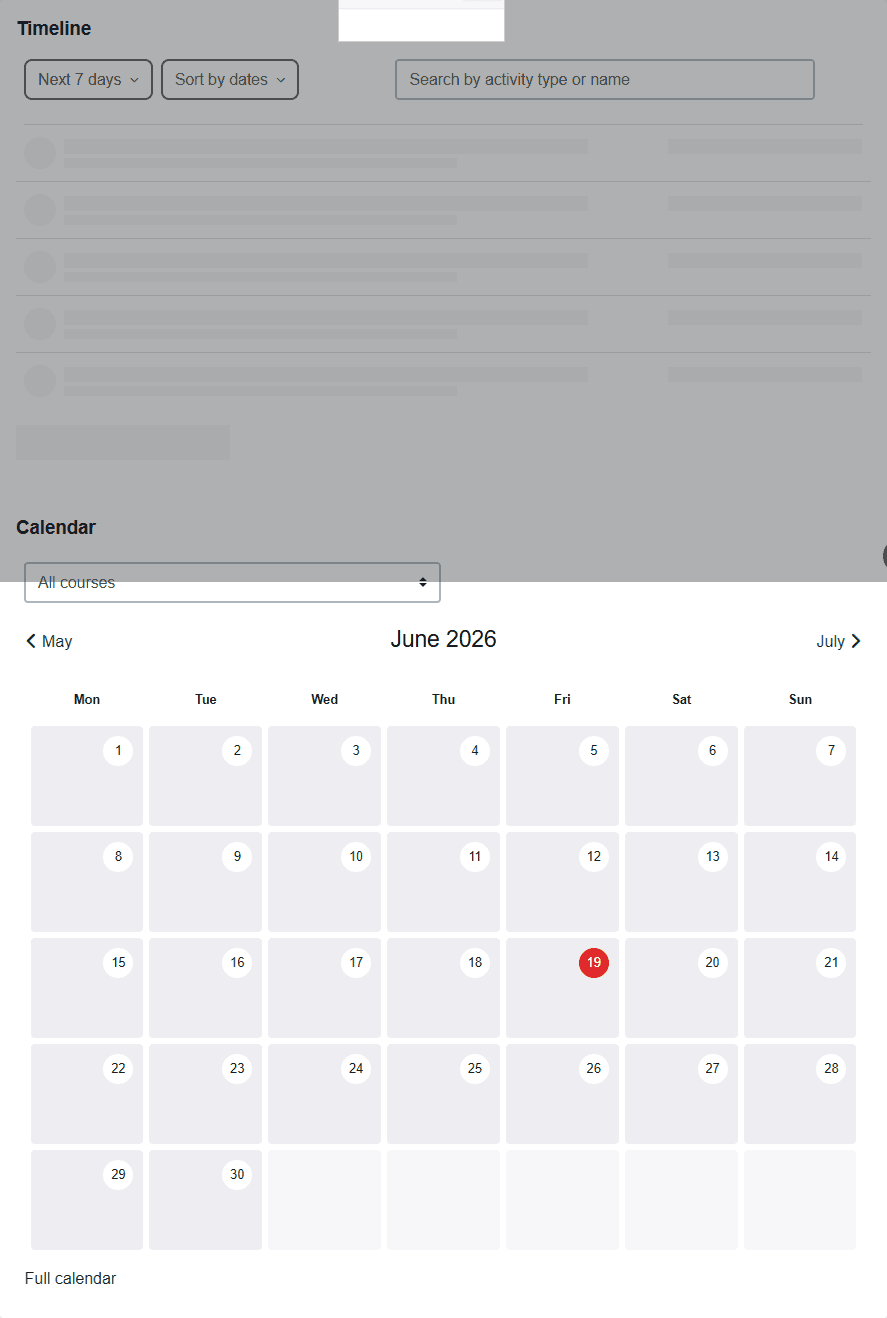
After login, the dashboard is the best quick scan point. In the observed session it showed:
- a video guide
- a timeline block
- a calendar block
- a
Recently accessed itemsblock - footer links to official help resources
The key discovery was Recently accessed items. That block contained direct links to:
Tutor Marked Assignment 1 (TMA1)Tutor Marked Assignment 2 (TMA2)Tutor Marked Assignment 3 (TMA3)
So if you have already opened the course or one of its activities before, you may not need to start from the full course page again.
This route is especially useful when you need speed. It is less useful when you are not sure whether the visible TMA belongs to the exact course you want. In that case, move to the course page and verify from there.
The Second Place To Check: Course Page
The observed Numerical Analysis (MTH213_261) course page was long and section-heavy. It included learning weeks, discussion forums, academic-integrity content, revision, and then a dedicated TMA section.
That page matters because it is the strongest verification surface when you want to answer two questions:
- am I inside the right course?
- which TMAs belong to this course?
The observed course page clearly exposed:
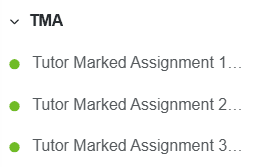
Tutor Marked Assignment 1 (TMA1)Tutor Marked Assignment 2 (TMA2)Tutor Marked Assignment 3 (TMA3)

This is where many students lose time. They enter the course, see Week 1 or a discussion forum, and assume the TMA must be somewhere else. The live session showed the opposite: the TMA was on the course page, but not near the top.
If you are not even sure your course is ready inside eLearn, it helps to review course registration, carryover course registration, and the course materials library so you can separate a registration problem from a navigation problem.
The Exact TMA Section We Observed
Inside the observed course, the TMA area was a dedicated block labeled TMA. It was not hidden under a vague title, and it listed the three assignments directly.
That makes the course page the safest route when:
- the dashboard shortcut is not available
- you need to confirm whether the TMA belongs to the right course
- you want to move from
TMA1toTMA2orTMA3without relying on memory
The Third Route: Use The Course Index Inside A TMA Page
One useful detail from the live session is that an open TMA page was not a dead end. It included a course index that also contained the TMA subsection.
That means if you already opened one assignment, you can still move to another TMA without backing all the way out to the dashboard.
This route is practical when:
- you opened the wrong TMA and want the correct one
- you want to compare the visible labels for all TMA activities
- you need a second confirmation that the course really has multiple TMA entries
What About My Courses?
My courses was visible in the top navigation and the route loaded, but the observed session did not present a clearly populated course listing the way many students would expect.
That does not mean My courses never works. It means you should not depend on it as your only way to find a TMA when:
- you are in a hurry
- the page feels empty or unclear
- you already know the course you need
In the observed workflow, the dashboard and direct course page were more reliable than My courses.
Step-By-Step Workflow To Find A TMA Safely
Step 1: Log into the correct eLearn account
Start from the current official NOUN eLearn route. Make sure you are in your own account and not using another student's screenshots or directions as the final source.
Step 2: Check the dashboard first
Open Dashboard and scan Recently accessed items. If the exact TMA you need is visible there, open it.
Step 3: Verify with the course name
Before clicking quickly, check that the TMA label and course name match what you expect. Do not open a TMA just because it is the first visible recent item.
Step 4: Open the course page if needed
If the recent item is missing or unclear, open the course page itself. The course page is the stronger verification route.
Step 5: Scroll until you reach TMA
In the observed course, the TMA area appeared after Revision. If you stop early, you may think the TMA is missing when it is only lower on the page.
Step 6: Use the course index when already inside a TMA
If one TMA is already open, use the course index to move between TMA entries instead of backing out and starting over.
Common Mistakes Students Make While Looking For TMA
- assuming
My courseswill always be the easiest route - stopping at the first week section and never scrolling to
TMA - trusting a dashboard shortcut without checking the course name
- confusing discussion forums with TMA activities
- assuming every course page places TMAs in the same visual position
If you want the full prevention checklist, go to Common TMA Mistakes Students Make.
Troubleshooting
You can see the dashboard but not the TMA
Check Recently accessed items. If nothing useful appears, move to the course page and verify there instead.
You are on the course page but still cannot find it
Scroll carefully through the full course structure. In the observed session, the TMA area was not near the top.
You found one TMA but need another one
Use the course index inside the open TMA page, or return to the dedicated TMA block on the course page.
The page labels do not match what you expected
Pause and verify the course code. A workflow error is easier to fix before you start the wrong activity than after.
You still think the course or TMA is missing
Check whether the issue is really a course-access problem. Compare your eLearn view with your course registration record, results history, and support preparation guide.
Verification Notes
This article is based on a live session recorded in an earlier editorial pass dated 19 June 2026. The observed account showed three TMA entries inside Numerical Analysis (MTH213_261) and exposed three navigation routes to those assignments. The My courses page was visible but less clear than the dashboard and full course page during the session. A current source recheck is pending.
Use these findings as a route map, then verify the current labels in your own course.
Quick answers
Open any question for the answer.
01Where should I look first for a TMA?
Start with the dashboard's Recently accessed items if you have opened the course before, then check the course page's dedicated TMA section.
02What if My courses does not help?
In the observed session, My courses showed controls but not a clearly populated course list, so the dashboard and direct course page were more reliable starting points.
03Can I find another TMA from an existing TMA page?
Yes. The observed TMA page included a course index with a TMA subsection linking to TMA1, TMA2, and TMA3.
04What is the fastest route to a TMA?
The fastest observed route was often `Dashboard` -> `Recently accessed items`. The safest verification route was the course page's `TMA` section.
05Do I need My courses to find a TMA?
Not always. In the observed session, the dashboard and course page were more useful than `My courses`.
06How many TMA entries were visible?
The observed course showed `TMA1`, `TMA2`, and `TMA3`.
07Can I switch TMAs from inside an open TMA page?
Yes. The observed TMA page included a course index with a `TMA` subsection.
08What should I do if the TMA still feels missing?
Confirm the course itself, check the full course page carefully, and prepare safe evidence before escalating through official support.