NOUN TMA Deadline Guide
Learn how NOUN eLearn displayed TMA deadlines in the observed session, where to verify opened and closed times, and how to avoid missing the real deadline for your own course activity.
 NOUNCOMPASS
NOUN TMA Deadline Guide
Learn how NOUN eLearn displayed TMA deadlines in the observed session, where to verify opened and closed times, and how to avoid missing the real deadline for your own course activity.


Learn how NOUN eLearn displayed TMA deadlines in the observed session, where to verify opened and closed times, and how to avoid missing the real deadline for your own course activity. Check any account-specific step against your own NOUN record.
Where Is The TMA Deadline Shown?
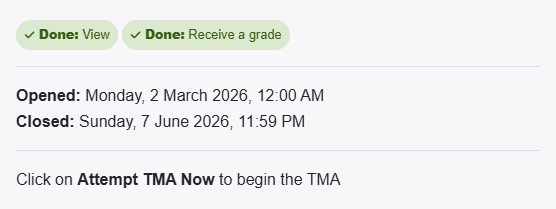
The observed NOUN eLearn TMA pages displayed deadlines directly on the activity page through two fields: Opened and Closed. The safest way to avoid deadline mistakes is to open the exact TMA activity itself, read those timestamps carefully, and stop relying on memory, copied screenshots, or another student's timetable.
The Most Important Deadline Lesson
A TMA deadline is not something you should infer from the dashboard alone. In the observed session, the most trustworthy timing surface was the TMA activity page itself.
That page showed:
OpenedClosed- the instruction
Click on Attempt TMA Now to begin the TMA Attempts allowed: 1
So the right question is not only When is the deadline?
It is also:
Am I reading the deadline from the exact TMA activity page that belongs to my own course?
What We Observed In The Live Session
The reviewed course was Numerical Analysis (MTH213_261). On the observed TMA1 page, the activity header displayed:
- Opened:
Monday, 2 March 2026, 12:00 AM - Closed:
Sunday, 7 June 2026, 11:59 PM
On the observed TMA3 page, the pattern was the same, with a different open date.
That matters because the platform did not hide timing in a secondary menu. It placed the deadline information directly in the TMA header.
Where Students Should Check TMA Deadlines
Based on the live session, check in this order:
- the exact TMA activity page
- the course page to confirm you chose the right TMA
- the dashboard if you need a quick navigation route, not a final timing decision
The reason for this order is simple:
- the dashboard helps you find the task
- the course page helps you verify the right TMA
- the TMA activity page tells you the actual timing
How To Read The Deadline Safely
Step 1: Open the exact TMA
Use the dashboard, the course page, or the TMA course index to open the correct assignment. If you need help with that first step, read How To Find TMA On NOUN eLearn.
Step 2: Read Opened
This field tells you when the activity became available. It helps you verify whether you are looking at a live task or reviewing an old one.
Step 3: Read Closed
This is the practical deadline field. Do not skip it just because you already know roughly when the course wants submissions.
Step 4: Check Attempts allowed
A deadline matters even more when the activity also shows Attempts allowed: 1, as the observed TMA pages did.
Step 5: Re-check before you act
If you left the page and came back later, read the timing again. Deadline mistakes often happen when students rely on what they think they saw yesterday.
Why Students Miss TMA Deadlines
The observed interface makes certain mistakes more likely:
- students may find the TMA link through
Recently accessed itemsand click too quickly - the long course page can make students feel they have already "found everything" before reaching the TMA block
- the phrase
Attempt TMA Nowcan grab attention faster than the actual timing fields - students may assume all three TMAs in a course close the same way without checking each page
This is why deadline checking should be deliberate, not emotional.
Deadline-Safe Workflow
Use this practical pattern:
- confirm the course and TMA label
- open the TMA activity page
- read
Opened - read
Closed - confirm
Attempts allowed - only then decide whether you are ready to proceed
- after submission, check the finished-state summary
This workflow connects directly to How To Submit TMA On NOUN eLearn and the broader NOUN eLearn and TMA guide.
Common Deadline Mistakes
- checking a dashboard shortcut but never reading the TMA header
- copying another student's deadline instead of reading your own activity page
- assuming all TMAs for a course follow the same visible timing without opening each one
- focusing on the top instruction line and ignoring the timing fields nearby
- starting a one-attempt TMA without enough time or preparation
If you want the wider prevention checklist, use Common TMA Mistakes Students Make.
Troubleshooting
The TMA looks closed already
Do not guess. Confirm the exact TMA page, read the Closed field again, and preserve a safe screenshot if the status seems inconsistent with an official announcement.
I can find the course but not the deadline
Move from the course page into the TMA activity itself. The course page helps with navigation, but the activity page is where the timing was shown most clearly in the observed session.
I am not sure whether I opened the right TMA
Return to the course page and verify the label against TMA1, TMA2, or TMA3.
I missed the deadline and need help
Prepare the course code, the exact TMA label, and a safe screenshot of the page state before using the official support route.
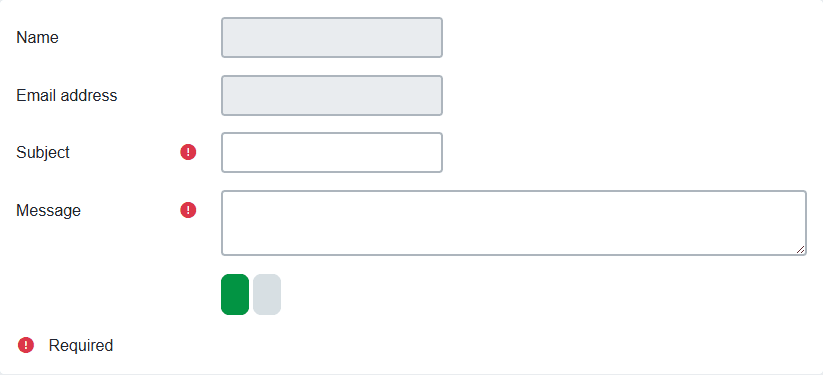
The best support preparation guide for that step is NOUN Support Ticket Guide.
A Better Deadline Planning Routine
The observed platform suggests a simple routine students can repeat for every TMA:
- open the exact TMA page the same day you first notice it
- record the visible
OpenedandClosedfields in your own notes - return to the page again before the work session starts
- re-check the fields instead of trusting memory
- only then proceed through the submission workflow
This routine works because it is based on the actual page structure, not on assumptions about announcements or group chats. It also fits naturally with the observed one-attempt rule.
It also works better when you pair the TMA page with the course page itself. The course page helps you confirm that you opened the right assignment, while the TMA activity page tells you exactly when that assignment opens and closes.
Deadline Mistakes That Become Bigger Problems Later
Missing a TMA deadline is rarely just one bad day. It can also create confusion in later stages of the student workflow:
- students may keep checking the TMA page without understanding the closed state
- they may mistake a closed task for a broken platform issue
- they may start a vague support complaint without a screenshot of the timing fields
- they may later wonder why the course grade record looks incomplete
That is why deadline checking belongs in the larger sequence:
Verification Notes
This guide is grounded in a live eLearn session recorded in an earlier editorial pass dated 19 June 2026. That earlier pass recorded Opened and Closed fields on the observed TMA activity pages. The specific observed dates do not apply to other courses. Use the pattern, not another student's timestamp. A current source recheck is pending.
Quick answers
Open any question for the answer.
01How are TMA deadlines shown on eLearn?
The observed TMA activity pages displayed both Opened and Closed timestamps directly in the activity header.
02Should I copy another student's deadline?
No. Use the deadline shown on your own course activity page because course timing can differ.
03What if a TMA already looks closed?
Preserve the page state, confirm you are on the correct TMA and course, and use the official support route if the status conflicts with an authorised announcement.
04Where is the real TMA deadline shown?
On the TMA activity page itself, through the `Opened` and `Closed` fields.
05Should I trust the dashboard for the final deadline?
No. The dashboard is useful for navigation. The TMA activity page is better for final timing decisions.
06Do I need to open every TMA separately?
Yes, if you want to verify timing safely. Do not assume one TMA's dates explain every other TMA in the course.
07Why does the attempt rule matter for deadlines?
Because the observed TMA pages showed `Attempts allowed: 1`, which makes timing mistakes more costly.
08What should I do if the deadline state still looks wrong?
Capture safe evidence and escalate through official support rather than relying on memory or copied screenshots.