Common TMA Mistakes Students Make
Learn the common NOUN TMA mistakes students make on eLearn and how to avoid them before submission.
 NOUNCOMPASS
Common TMA Mistakes Students Make
Learn the common NOUN TMA mistakes students make on eLearn and how to avoid them before submission.


Learn the common NOUN TMA mistakes students make on eLearn and how to avoid them before submission. Check any account-specific step against your own NOUN record.
What Causes Most TMA Mistakes?
The biggest NOUN TMA mistakes are usually workflow mistakes, not knowledge mistakes. In the observed eLearn session, students were most likely to go wrong by missing the TMA section on the course page, trusting the wrong navigation surface, ignoring Opened, Closed, or Attempts allowed, and checking the wrong place for scores afterward.
Why These Mistakes Happen
The observed platform divides the TMA journey across several different surfaces:
- dashboard
- course page
- TMA activity page
- grade-report page
- support form
That layout is useful once you understand it. Before that, it creates avoidable confusion. Students often think one page should answer every question. The live session showed that each page answers a different part of the workflow instead.
Mistake 1: Looking In The Wrong Place First
Many students will start with My courses because it sounds like the obvious route. In the observed session, however, My courses was visible but not the clearest surface for finding the needed course activity quickly.
The more reliable observed routes were:
Dashboard->Recently accessed itemsCourse page->TMATMA page->Course index
So the mistake is not using My courses. The mistake is depending on it even when the page is not helping.
Mistake 2: Stopping Too Early On The Course Page
The observed course page for Numerical Analysis (MTH213_261) was long. It included general content, academic-integrity guidance, weekly learning blocks, discussion forums, revision, and then the TMA section.
Students who stop after the first visible weeks can leave the page convinced the TMA is missing.
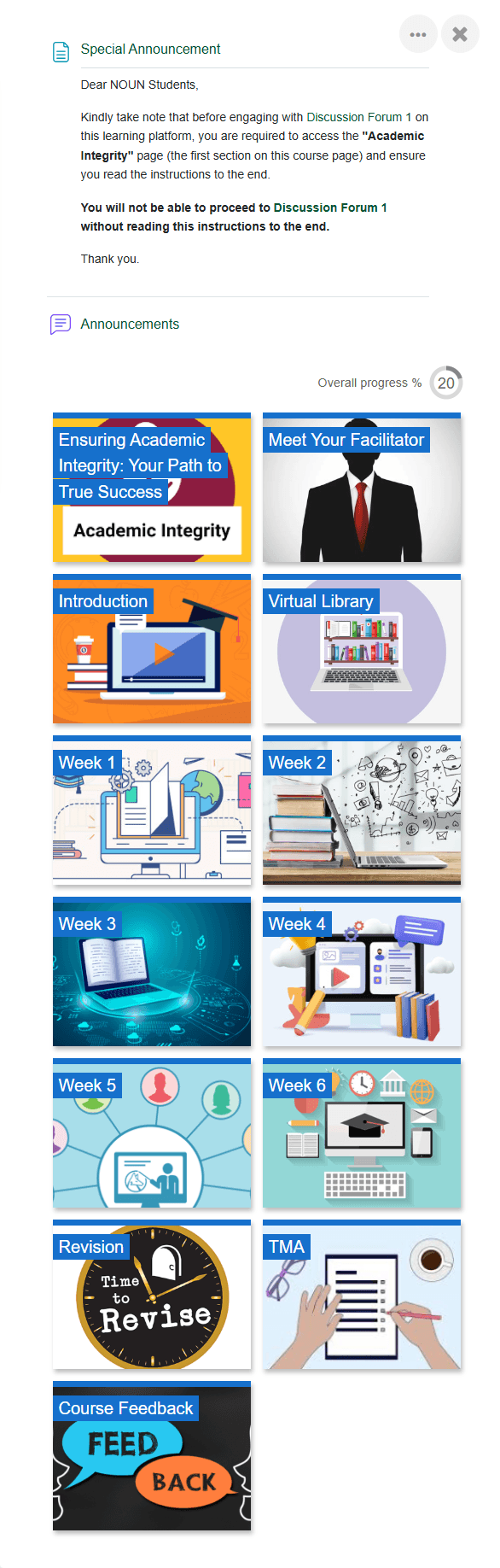
The correction is simple: scroll deliberately and look for the TMA section label itself.
Mistake 3: Clicking A TMA Without Verifying The Label
The dashboard shortcut is fast, but speed can create errors. In the observed session, the dashboard displayed direct links to TMA1, TMA2, and TMA3.
That is helpful, but it also means students can click the first visible TMA without checking:
- the course name
- the TMA number
- whether they intended
TMA1,TMA2, orTMA3
This matters more in busy semesters when several course activities look similar.
Mistake 4: Ignoring The TMA Header
One of the clearest findings from the live research was that the activity header carried important control information:
OpenedClosedAttempts allowed
Students who jump straight to the action path can miss the most important safeguards on the page.
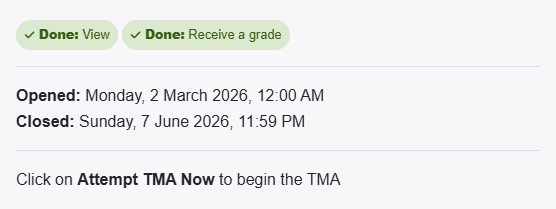
If you only remember one prevention rule from this page, let it be this: read the header before you read your own urgency.
Mistake 5: Treating A One-Attempt Activity Casually
The observed TMAs displayed Attempts allowed: 1. That is one of the strongest reasons students should slow down.
A one-attempt workflow means students should avoid:
- rushed opening
- weak internet preparation
- last-minute guessing
- casual clicking just to "see what happens"
This is where the TMA deadline guide and submission guide become important. Timing mistakes and submission mistakes overlap heavily when only one attempt is visible.
Mistake 6: Misreading The Finished State
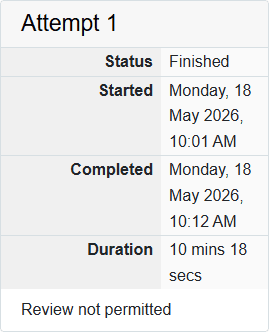
The observed TMA page still showed the line Click on Attempt TMA Now to begin the TMA, but lower on the same page the real attempt summary showed:
Status FinishedStartedCompletedDurationReview not permittedNo more attempts are allowed
That means a student who reads only the top of the page can misunderstand a finished activity.
Mistake 7: Looking For Scores Only On The TMA Page
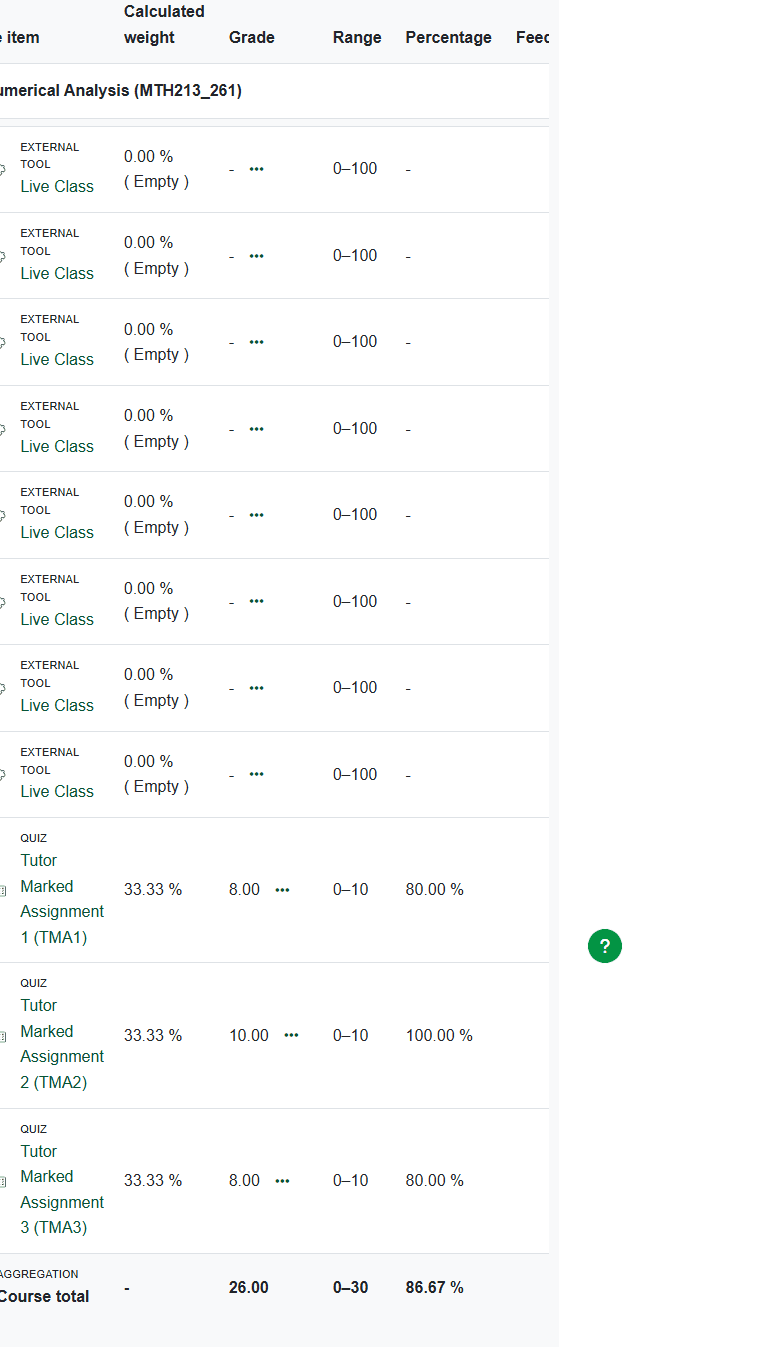
The live session made this point very clearly. The TMA page was useful for attempt status, but the course-specific grade report was better for marks.
Students who never move to Grades can create a false score panic. The course-specific report showed:
- each TMA line item
- weights
- raw marks
- percentages
- the course total
If this is already your issue, use Why Your NOUN TMA Score Is Not Showing.
Mistake 8: Escalating Without Evidence
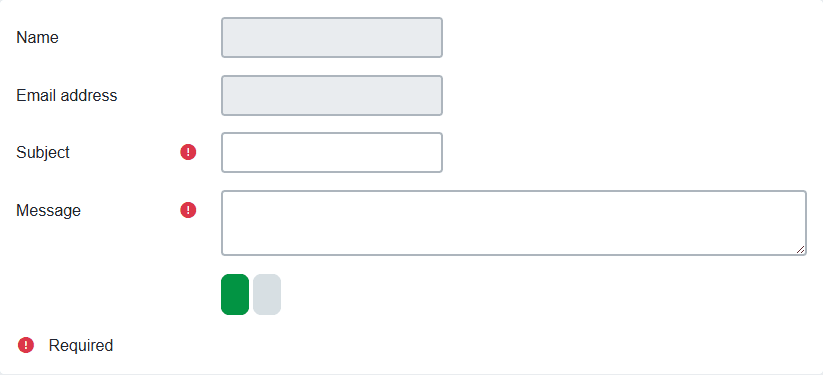
The observed support form was straightforward, but that does not mean a vague complaint will help anyone resolve the problem.
Before contacting support, prepare:
- the exact course code
- the exact TMA label
- the page where the issue appears
- safe screenshots
- the difference between what you expected and what you saw
For the reporting structure itself, read NOUN Support Ticket Guide.
A Better Student Workflow
Use this safer sequence instead:
- register your courses correctly
- enter eLearn
- find the exact course
- locate the exact TMA
- read the activity header
- respect the attempt rule
- verify the finished state
- check the grade report
- escalate only with evidence
This is why the TMA cluster should connect naturally to course registration, exam registration, results, support, and the course-materials library.
Troubleshooting
I already made one of these mistakes
Do not compound it with another rushed action. Return to the exact page, verify the current state, and document it clearly.
I am not sure whether the TMA is missing or I just missed it
Go back to the course page and look specifically for the TMA section. Do not rely on memory.
I am not sure whether the score is missing or I checked the wrong place
Open Grades and the course-specific grade report before assuming anything is wrong.
I think the LMS is confusing
That is a fair reaction. The platform has several navigation surfaces. Use a verification routine instead of expecting every answer to live on one page.
A Practical Prevention Checklist
If you want to reduce TMA mistakes before they happen, use this short routine every time:
- verify the exact course page
- find the exact TMA label
- read
Opened,Closed, andAttempts allowed - do not rush a one-attempt activity
- verify the finished-state summary after completion
- check the course-specific grade report for the mark
- escalate only with safe evidence
This checklist is not theory. It comes directly from the observed friction points across the dashboard, course page, TMA page, grade report, and support form.
What A Missed TMA Step Affects Later
TMA mistakes rarely stay inside one page. They can spill into:
- exam preparation because the student is still unsure about course progress
- result interpretation because the grade report looks incomplete
- support workload because the complaint is vague
- future registration decisions because students start acting on uncertain records
That is why the TMA cluster should connect naturally to:
- course registration
- exam registration
- results checking
- support-ticket preparation
- course materials access
Verification Notes
An earlier editorial pass dated 19 June 2026 recorded these eLearn friction points: unclear reliance on My courses, long course-page structure, the TMA section position, one-attempt visibility, finished-state summary, separate grade surfaces, and the support form. A current source recheck is pending.
Quick answers
Open any question for the answer.
01What is the easiest way to miss a TMA?
One common mistake is stopping at the top of the course page and never scrolling or opening the TMA section lower down the course structure.
02Why do students misread their TMA status?
The observed page still displayed the phrase Attempt TMA Now while the attempt summary below showed Finished, which can mislead students who read only the top of the page.
03What is the safest response when the TMA workflow looks wrong?
Stop, capture safe evidence, verify the correct course and grades route, and escalate through official support rather than guessing or repeating actions.
04What is the most common TMA mistake?
Missing the TMA section on the course page or checking the wrong surface for the next step.
05Why do students misread TMA status?
Because the top instruction line can draw attention faster than the finished-state summary lower on the page.
06Where should I check the score?
Use the course-specific grade report inside `Grades`.
07What should I do before asking for support?
Prepare the course code, TMA label, safe screenshots, and a clear description of one problem.
08Can NOUN Compass act inside eLearn for me?
No. NOUN Compass is an independent guide site and does not access student accounts or modify official records.